
The Ultimate Guide to the Android Contact Widget in 2025: Stay Connected with a Tap
Introduction: The Power of the Android Contact Widget
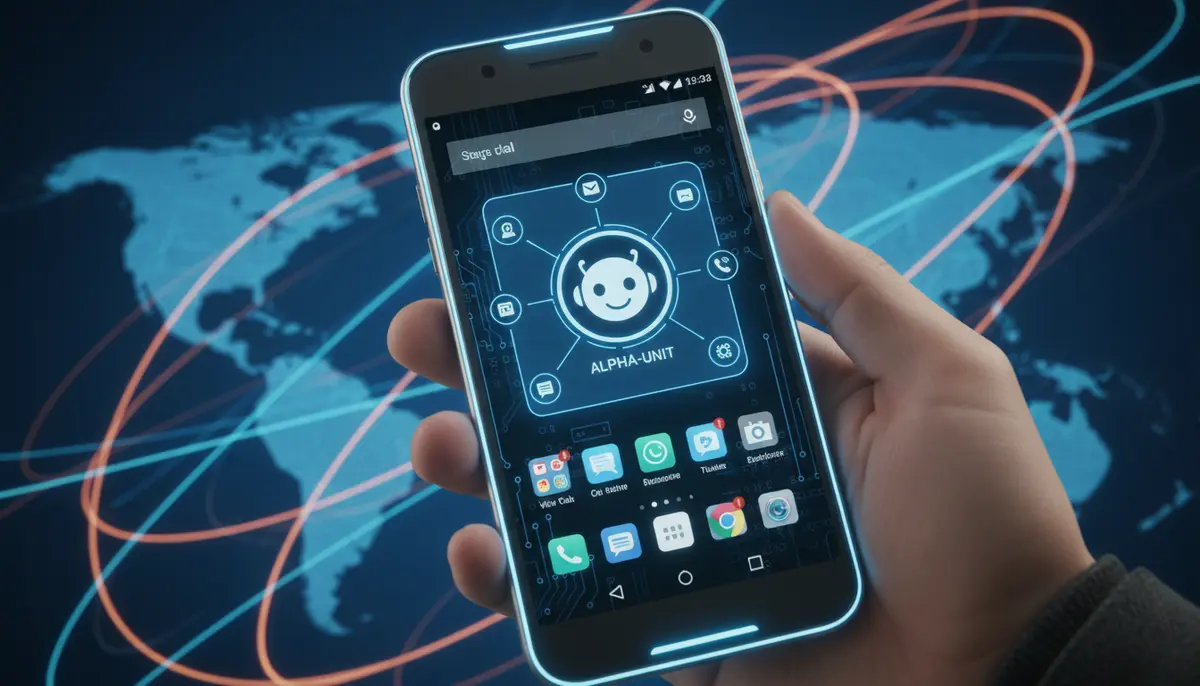
In today's fast-paced world, staying connected is more crucial than ever. You need quick access to your most important contacts. This is where the powerful android contact widget comes into play. It transforms your phone's home screen into a hub for instant communication.
Forget digging through your address book. With an android contact widget, a single tap can initiate a call, send a message, or even start a video chat. This guide will walk you through everything you need to know about maximizing this essential tool in 2025. We will cover setup, customization, and advanced tips.
What Exactly is an Android Contact Widget?
An android contact widget is a miniature application that lives directly on your Android device's home screen. It provides a shortcut to specific contacts or contact groups. Instead of opening the full Contacts app, you interact directly with the widget. This saves you valuable time and effort.
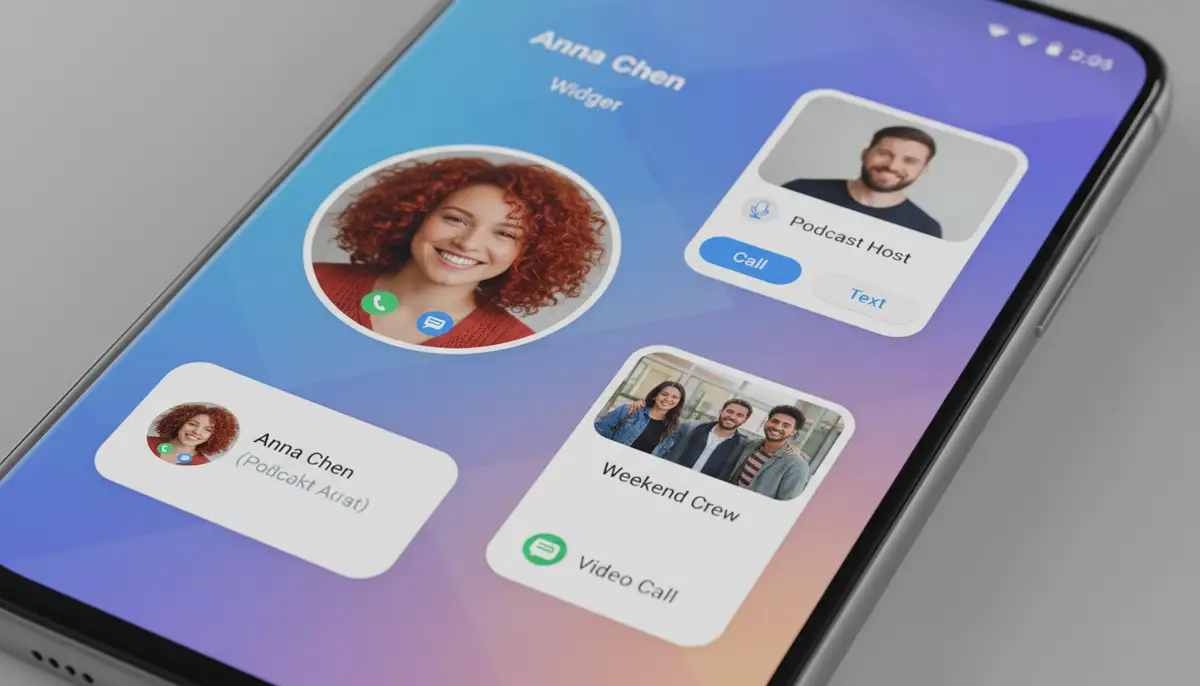
These widgets come in various forms and sizes. Some offer a simple profile picture with a name. Others include multiple action buttons like call, text, or email. The primary goal is always the same: to streamline your communication. It makes connecting with friends, family, and colleagues incredibly efficient.
Why You Need an Android Contact Widget in 2025
The benefits of using an android contact widget extend beyond mere convenience. They significantly boost your daily productivity. Imagine needing to call your partner urgently. Instead of unlocking your phone, finding the Contacts app, searching for their name, and then tapping 'call,' you just tap their widget.
This instant access is invaluable. It reduces distractions and keeps you focused on your tasks. Furthermore, it allows for better organization of your home screen. You can group important contacts visually. This creates a personalized and highly functional interface.
- Instant Communication: One-tap access to calls, texts, and emails.
- Enhanced Productivity: Reduce steps and save time in your daily interactions.
- Personalized Home Screen: Organize your most important contacts visually.
- Reduced Distractions: Stay focused by avoiding the full contacts app.
- Emergency Preparedness: Quickly reach essential contacts in critical situations.
Different Types of Android Contact Widgets
The world of android contact widgets is diverse. You will find several types, each designed for specific needs. Understanding these variations helps you choose the best option for your workflow. Native widgets often offer basic functionality. However, third-party apps provide much more.
Direct Dial Widgets
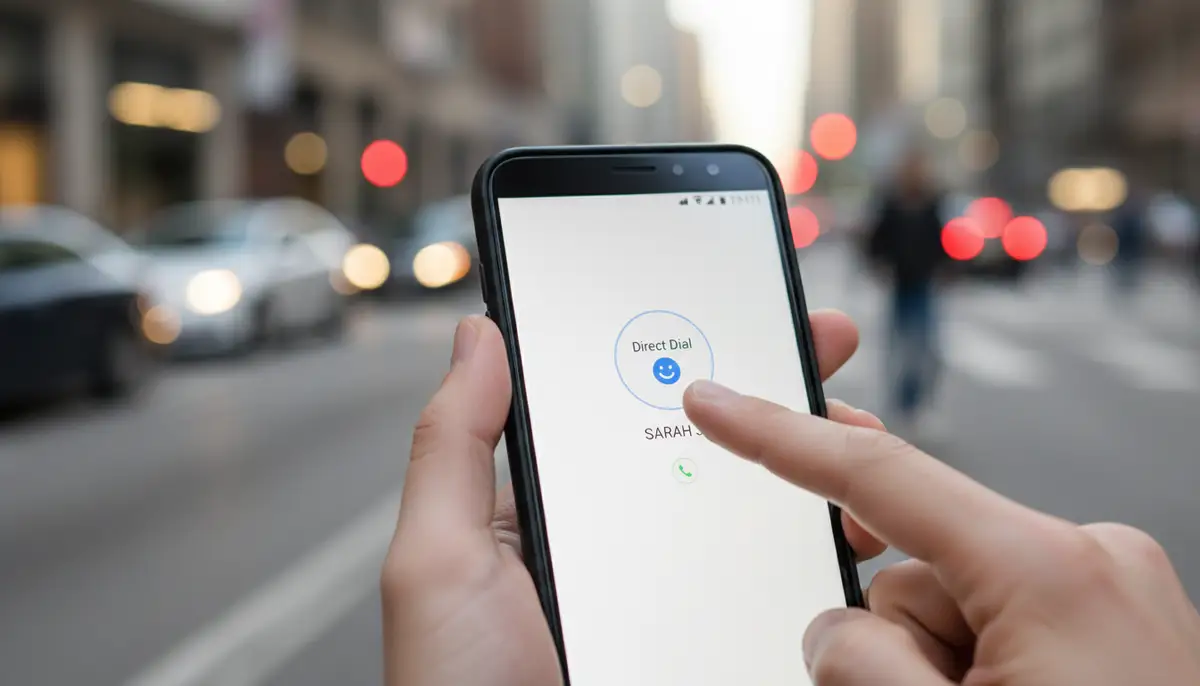
These are perhaps the most straightforward. A direct dial widget places a specific contact on your home screen. Tapping it immediately initiates a phone call to that person. This is perfect for your most frequently called contacts, like family members or a boss. However, some users have noted recent changes to contact widget functionality on certain devices, where widgets might default to direct dial only.
Quick Access Widgets
Quick access widgets are more versatile. They typically display a contact's photo and name. Tapping the widget opens a small menu or the contact's details. From there, you can choose to call, text, email, or even video chat. This provides more options without cluttering your home screen with multiple buttons for one person.
Contact Group Widgets
For those who manage many contacts, group widgets are a lifesaver. These widgets display a collection of contacts from a specific group, like 'Work Team' or 'Family.' You can often scroll through the contacts within the widget. This allows you to quickly find and interact with anyone in that group. It's an excellent way to keep related contacts organized.
Customizable Widgets
Many third-party apps, including those found in diverse widget options on the Play Store, offer highly customizable android contact widget experiences. You can change colors, fonts, sizes, and even the actions associated with a tap. This level of personalization allows you to match the widget to your device's aesthetic. It also ensures it functions exactly how you need it to. Widgetopia, for instance, provides a vast collection of 100,000 free homescreen widgets, allowing users to remix or design their own, extending far beyond simple contact widgets to include options for an android image widget and many others.
How to Add an Android Contact Widget to Your Home Screen
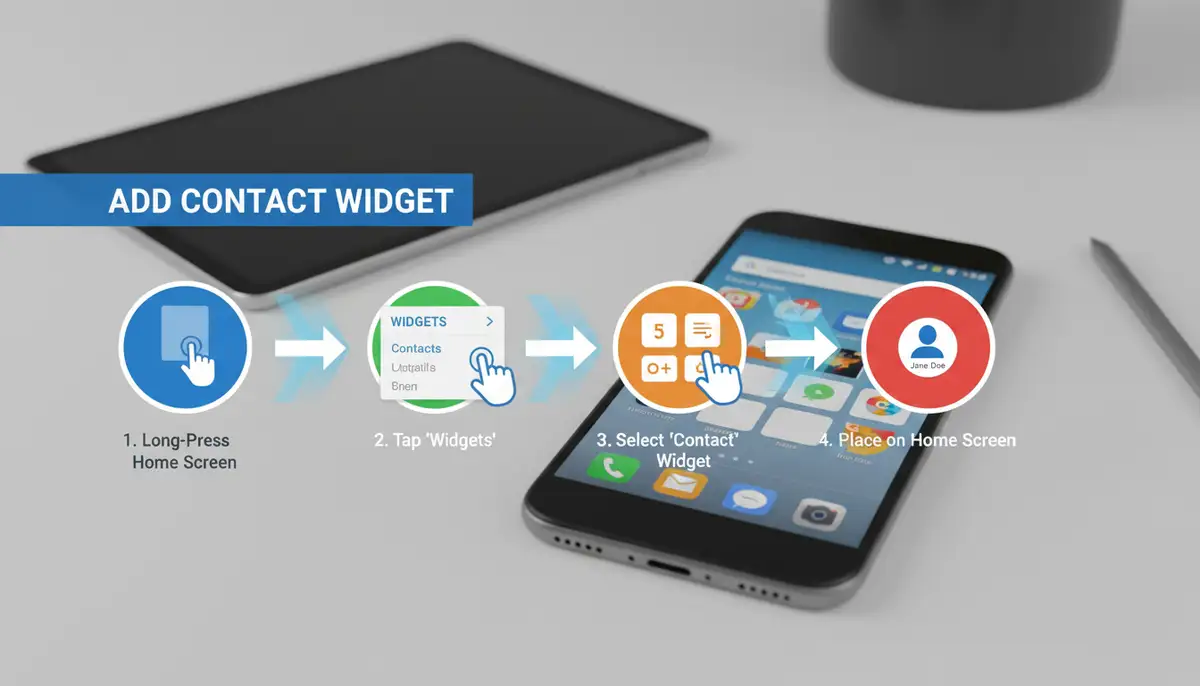
Adding an android contact widget is a straightforward process. It varies slightly depending on your Android version and phone manufacturer. However, the core steps remain consistent. Here is a general guide to get you started. For specific instructions, you can also consult the official Google support guide for adding contact widgets.
- 1. Long-press an empty space on your home screen. This will typically bring up a menu with options like 'Widgets', 'Wallpapers', and 'Settings'.
- 2. Tap on 'Widgets'. This will open a list of all available widgets on your device. Scroll through until you find the 'Contacts' section or a specific contact widget app you've installed.
- 3. Find the 'Contact' widget. You might see options like 'Contact', 'Direct Dial', or a specific widget from a third-party app. Long-press the desired contact widget.
- 4. Drag and Drop. While still holding, drag the widget to your preferred location on the home screen. Release your finger once it's in place.
- 5. Select a Contact. After placing the widget, your phone will usually prompt you to choose which contact to associate with it. Select the desired contact from your address book.
- 6. Adjust Size (Optional). Some widgets allow you to resize them. Tap and hold the widget, then drag the edges to adjust its dimensions.
Repeat these steps for each contact you wish to add. You can create multiple android contact widgets. This provides quick access to all your key people. It's a simple yet powerful way to personalize your device.
Customizing Your Android Contact Widget for Optimal Use
Once you have your android contact widget on your home screen, the real fun begins: customization. Personalization is key to making your smartphone truly yours. Many widgets offer various ways to tailor their appearance and functionality. This ensures they perfectly fit your needs and aesthetic preferences.
Resizing and Reshaping
Most widgets are resizable. Long-press the widget until resize handles appear. Drag these handles to make the widget larger or smaller. This is useful for fitting more contacts on a single screen. It also helps if you want a larger, more prominent widget for a very important person. Experiment with different sizes to find what works best for your layout.
Changing Appearance
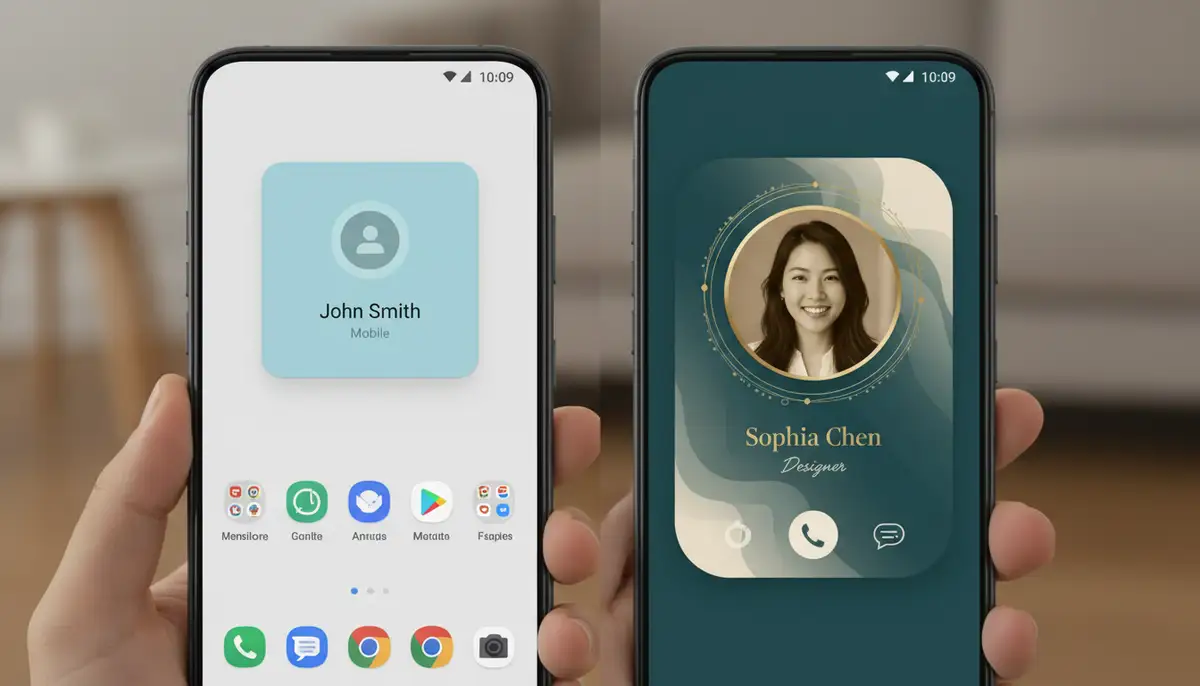
Third-party android contact widget apps often provide extensive aesthetic options. You can change background colors, text fonts, and even add frames or effects to contact photos. Some apps allow you to choose icon packs that match your overall theme. This makes your home screen look cohesive and stylish. Companies like Photowidget.net, Colorwidgets.app, and Aesthetic Widgets also offer tools for visual customization, but Widgetopia allows you to design your own widgets from scratch.
Action Configuration
For quick access widgets, you might be able to configure what happens when you tap them. Perhaps you want a single tap to open a text message, while a long-press initiates a call. Some advanced widgets allow you to set different actions for different parts of the widget. This level of control enhances the widget's utility significantly.
Advanced Tips for Your Android Contact Widget
Beyond basic setup and customization, several advanced strategies can further enhance your android contact widget experience. These tips help you manage a larger number of contacts efficiently. They also integrate your widgets seamlessly into your digital life. Think about how you use your phone most often.
Utilizing Folders for Organization
If you have many contact widgets, your home screen can quickly become cluttered. Create folders to organize them. For example, make a 'Family' folder, a 'Work' folder, and an 'Emergency' folder. Simply drag one widget onto another to create a folder. Then, drag additional widgets into that folder. This keeps your home screen tidy while maintaining quick access.
Integrating with Communication Apps
Some advanced android contact widget apps offer integration with specific communication platforms. This means a tap could open a WhatsApp chat, a Telegram conversation, or even a Zoom call directly. Check the settings of your chosen widget app for these capabilities. This deep integration streamlines your communication across various platforms.
Smart Contact Grouping
Leverage your phone's contact groups. If you have contacts categorized (e.g., 'Best Friends,' 'Clients'), use a widget that can display an entire group. This means you only need one widget for many contacts. It’s a powerful way to keep your home screen clean. It also ensures all relevant people are just a tap away.
Troubleshooting Common Android Contact Widget Issues
Even the most useful tools can sometimes encounter glitches. If your android contact widget isn't behaving as expected, don't worry. Most issues are easy to resolve. Here are some common problems and their solutions. Knowing these can save you a lot of frustration.
| Issue | Potential Cause | Solution |
|---|---|---|
| Widget not appearing | App not installed or widget not added correctly | Ensure the app is installed. Re-add the widget from the widgets menu. |
| Widget not responding | Temporary software glitch or app permissions issue | Restart your phone. Check if the contact widget app has all necessary permissions (e.g., Contacts, Phone). |
| Contact photo not showing | Photo not set in contact details or app permission missing | Edit the contact in your Contacts app and add a photo. Grant storage permissions to the widget app. |
| Widget disappears | Launcher issue or app being optimized away | Lock the widget app in recent apps to prevent it from being closed. Check battery optimization settings for the app. |
| Only direct dial available | Recent Android update changes | Some Android versions or OEM skins (like Samsung) have limited contact widget functionality. Look for third-party apps that offer more options. |
Always ensure your Android operating system and the contact widget app are up-to-date. Developers frequently release updates to fix bugs and improve performance. A simple update can often resolve many lingering issues. If you are exploring other widget options, consider integrating your phone into your car with an android auto widget for seamless driving experiences.
Top Android Contact Widget Apps and Alternatives
While your phone's native options are a good starting point, many third-party apps offer enhanced functionality and customization for an android contact widget. These apps often provide more flexibility in design, actions, and grouping. Exploring them can significantly upgrade your experience.
Widgetopia
Widgetopia stands out as a premier destination for home screen widgets on Android. It offers an extensive library of over 100,000 free widgets, including highly customizable contact widgets. You can choose from pre-designed templates or unleash your creativity to design your own. This platform provides unparalleled control over the look and feel of your widgets. It makes your home screen truly unique.
Other Popular Options
Beyond Widgetopia, several other apps offer excellent contact widget solutions. Look for apps that provide a robust collection of contact widgets and strong customization features. Companies like Photowidget.net, Colorwidgets.app, and Aesthetic Widgets also provide various widget solutions. However, Widgetopia's focus on user-designed content and vast library often gives it an edge in personalization.
When choosing an app, consider its user reviews, update frequency, and the specific features it offers. Do you need group widgets? Do you prioritize aesthetic customization? Answering these questions will guide you to the best android contact widget for your needs.
The Future of the Android Contact Widget
As technology evolves, so too will the android contact widget. We can expect even deeper integration with AI and smart assistants. Imagine a widget that dynamically suggests contacts based on your calendar or location. It could even offer predictive communication options. This means anticipating who you might need to contact next.
Furthermore, advances in foldable phones and larger screen devices will likely lead to new widget layouts and functionalities. We might see widgets that adapt seamlessly across different screen states. The focus will remain on making communication as effortless and intuitive as possible. Platforms like Widgetopia are at the forefront, continually innovating in the widget space. They provide users with tools to create cutting-edge designs and functionalities. This ensures the android contact widget remains a vital part of your digital experience.
Conclusion: Master Your Connections with the Android Contact Widget
The android contact widget is far more than a simple shortcut. It is a powerful tool for enhancing your smartphone's efficiency and personalization. By understanding its types, mastering its setup, and embracing customization, you can transform your home screen. You will gain instant access to your most important connections.
In 2025, a well-configured android contact widget is essential for anyone looking to streamline their digital life. Take the time to explore the options, experiment with different layouts, and discover the perfect setup for you. Whether it's for personal use or professional productivity, the android contact widget empowers you to stay connected with unprecedented ease. Don't forget to explore more home screen widgets to fully optimize your device.