

Your Ultimate Guide to the Android Auto Weather Widget in 2025: Stay Ahead of the Storm
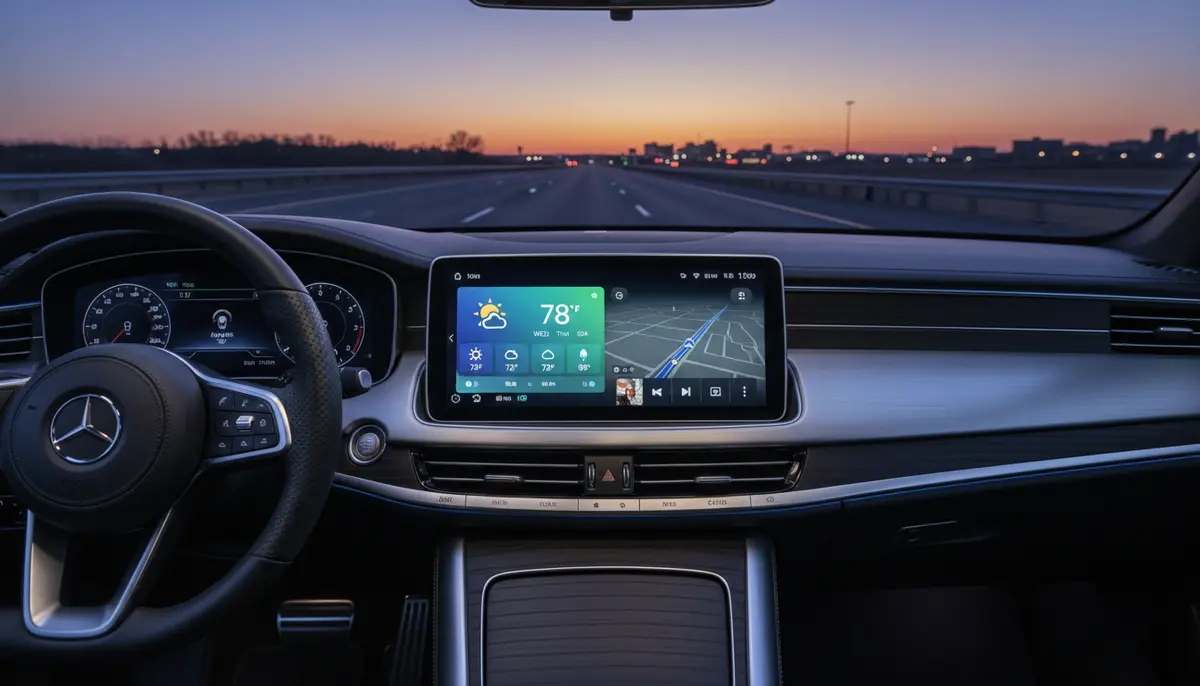
Driving in 2025 means staying connected and informed. Modern cars are smarter than ever, and Android Auto leads the way in integrating your smartphone experience into your vehicle. One of the most useful features for any driver is the android auto weather widget. This small but powerful tool provides crucial weather updates directly on your car's display, helping you plan your journey and stay safe. Knowing what conditions lie ahead can make a huge difference, whether you are commuting to work or embarking on a long road trip. Let's dive into everything you need to know about optimizing your android auto weather widget experience.
Why the Android Auto Weather Widget is Essential for Every Driver
Imagine you are driving and suddenly the sky darkens. Without a dedicated weather display, you might be caught off guard. The android auto weather widget changes that. It gives you real-time information, helping you anticipate changes. You can see temperature, precipitation, and even severe weather alerts right on your dashboard. This immediate access to weather data is invaluable for safety and convenience.
Being prepared for different weather conditions is crucial. Heavy rain, snow, or fog can significantly impact driving safety. With the android auto weather widget, you receive timely warnings. This allows you to adjust your speed, choose alternative routes, or even decide to delay your travel. It’s about more than just knowing if it will rain; it’s about making smarter driving decisions.
Understanding the Native Android Auto Weather Widget
Google's approach to the android auto weather widget has evolved over time. In earlier versions, a persistent weather icon was often visible. However, recent design changes have sometimes made it less prominent. For example, as noted by 9to5google.com, Google's latest Android Auto design may not always show a constant weather display unless specific conditions are met. This means understanding how and when the native widget appears is important.
Typically, the native android auto weather widget integrates with Google Assistant. When you ask Google Assistant about the weather, it can display a card with current conditions and a forecast. Sometimes, this information also appears contextually on your main screen, especially if it relates to your destination. However, many users prefer a more 'always-on' solution. This is where third-party apps come into play, offering a more consistent android auto weather widget experience.
Setting Up Your Android Auto Weather Widget (Native Options)
Even with Google's evolving design, you can still leverage native features to get weather updates. Here’s how you can make the most of the built-in android auto weather widget functionality:
- Ensure Google Assistant is active on your phone and Android Auto settings.
- Grant location permissions to Google Assistant and Android Auto for accurate local weather.
- Use voice commands like 'Hey Google, what's the weather like?' or 'Hey Google, will it rain at my destination?' to trigger weather cards.
- Check your Android Auto settings for any 'Cards' or 'Widgets' sections. Some car manufacturers or Android Auto versions might offer slight variations.
- Keep your Android Auto app updated to the latest version. Google frequently rolls out updates that can affect widget behavior.
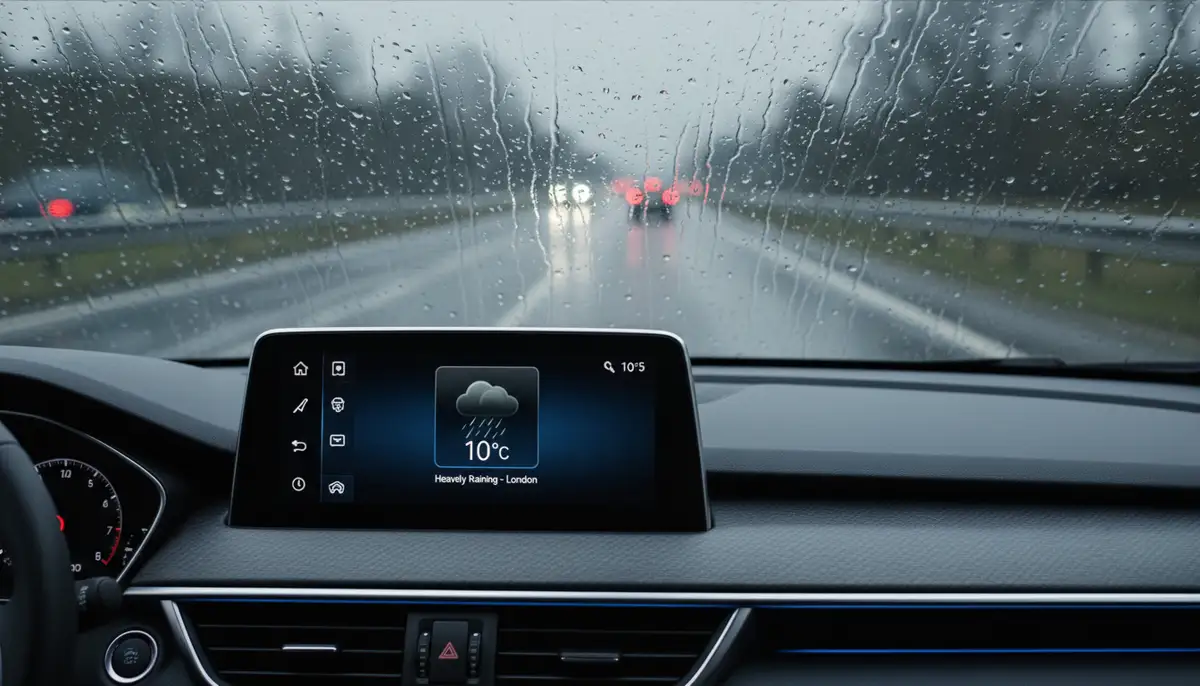
Remember, the native android auto weather widget might not always be a persistent fixture. It often appears based on context or your voice commands. For a more consistent display, you'll want to explore third-party options.
Exploring Third-Party Android Auto Weather Widget Solutions
Many drivers seek a more robust and always-visible android auto weather widget. Fortunately, several third-party applications integrate seamlessly with Android Auto. These apps often provide more detailed forecasts, radar maps, and customizable displays. They bridge the gap left by the native system, offering a richer weather experience.
Top Third-Party Weather Apps for Android Auto
When choosing a third-party app for your android auto weather widget, consider features like real-time radar, severe weather alerts, and ease of use. Here are some of the best options available in 2025:
- Weather & Radar: This app is a fantastic choice for drivers. It offers real-time weather updates, including detailed radar and rainfall maps. Weather & Radar is available for Android Auto, bringing real-time weather updates directly to your car's display, ensuring you remain informed and safe on the road. You can find more details about its Android Auto compatibility on weatherandradar.com. It's designed to help you know what to expect on the road by checking the WeatherRadar and RainfallRadar as you travel, as highlighted on Google Play.
- AccuWeather: A long-standing favorite, AccuWeather provides accurate forecasts and severe weather alerts. Its Android Auto integration is generally smooth, offering glanceable information.
- The Weather Channel: Another popular choice, The Weather Channel app delivers detailed forecasts, radar, and news. Its interface is user-friendly, making it easy to check conditions while driving.
- Carrot Weather: Known for its snarky personality and highly detailed forecasts, Carrot Weather offers a unique experience. While not always natively integrated as a full-screen app, its notification system can be very effective.
Each of these apps provides a distinct set of features. You should try a few to see which one best fits your needs for an android auto weather widget. Look for an app that provides the right balance of detail, ease of access, and reliability.
Installing and Configuring Third-Party Weather Apps for Android Auto
Getting a third-party android auto weather widget up and running is straightforward. Follow these steps to enhance your in-car weather experience:
- Download the App: First, download your chosen weather app from the Google Play Store onto your Android smartphone.
- Grant Permissions: Open the app on your phone and grant all necessary permissions, especially location access. This ensures accurate, real-time weather data.
- Connect to Android Auto: Connect your phone to your car's Android Auto system (via USB or wirelessly, depending on your vehicle).
- Find the App: On your car's display, navigate to the Android Auto app launcher. Look for your newly installed weather app.
- Launch and Configure: Open the weather app. Some apps allow you to customize what information appears first or set up specific alerts. Explore these settings to optimize your android auto weather widget.
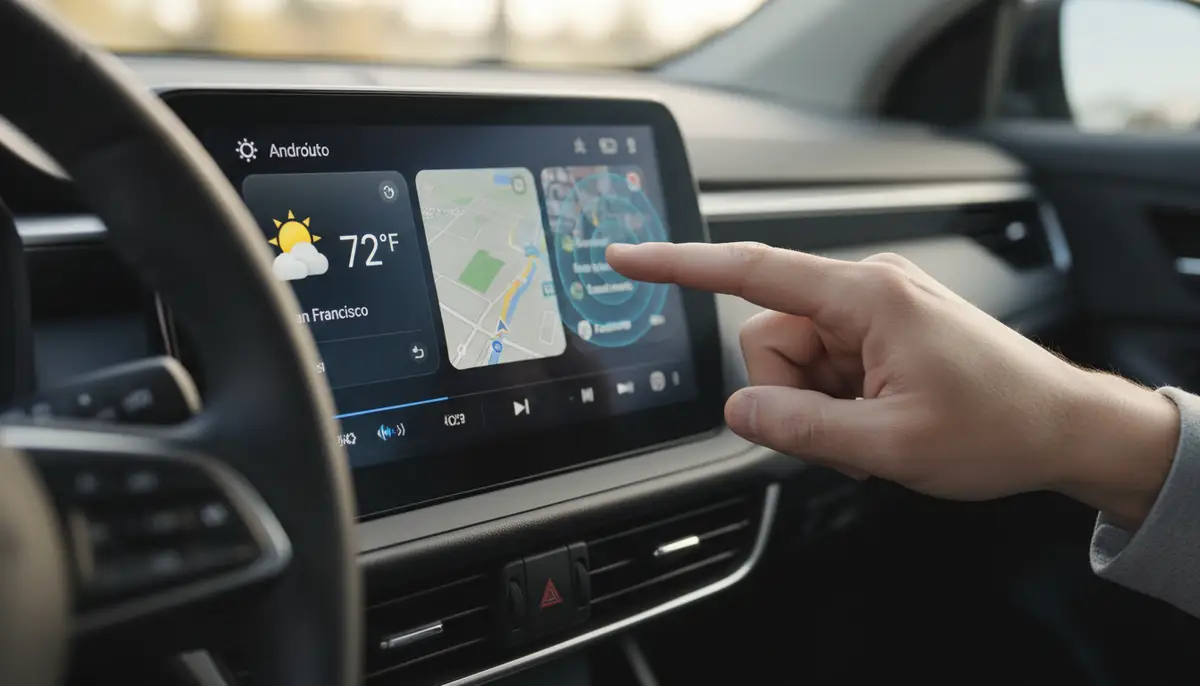
Always ensure your smartphone and Android Auto are up-to-date. This helps prevent compatibility issues and ensures you have access to the latest features for your android auto weather widget.
Customizing Your Android Auto Weather Widget Experience
Customization is key to making any digital tool truly useful. While Android Auto itself has some limitations on widget customization, third-party apps and your phone's settings offer significant flexibility. You can tailor your android auto weather widget to show exactly what you need, when you need it.
Personalizing Display Options
Many third-party weather apps allow you to choose what information is displayed. You might prefer a simple temperature and condition icon, or a more detailed forecast with wind speed and humidity. Look for these options within the app's settings on your smartphone. Some apps even let you select different themes or color schemes, helping your android auto weather widget blend with your car's interior.
Beyond weather, consider how other widgets enhance your driving. For example, a well-placed android counter widget could help track mileage or trip segments, while an android email widget could offer glanceable notifications without distraction. These tools, like the android auto weather widget, are designed to keep you informed while keeping your focus on the road.
Integrating Weather Alerts for Safer Driving
One of the most critical aspects of any android auto weather widget is its ability to deliver timely alerts. Configure your chosen weather app to send notifications for severe weather, sudden temperature drops, or heavy precipitation. These alerts can appear as banners on your Android Auto screen, providing crucial information without requiring you to navigate away from your map or music.
Always prioritize safety. Ensure that any alerts are audible and visually distinct but not overly distracting. The goal is to inform, not to overwhelm. A well-configured android auto weather widget should enhance your awareness, not detract from your driving focus.
Troubleshooting Common Android Auto Weather Widget Issues
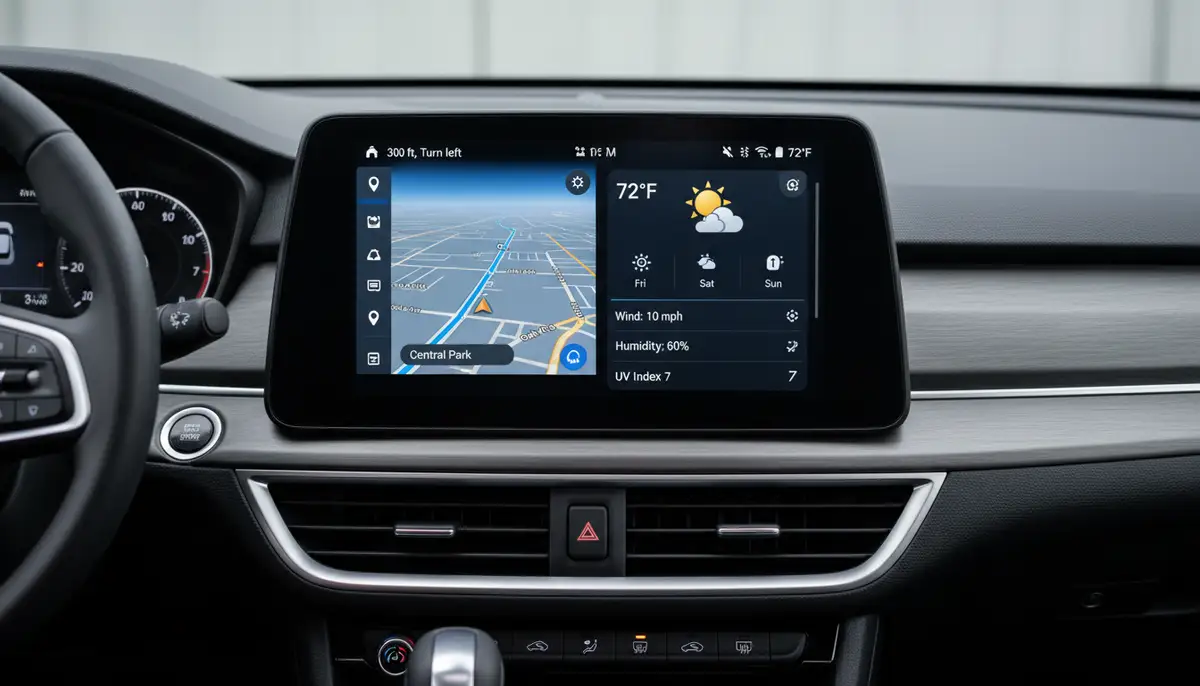
Even with the best setup, you might encounter issues with your android auto weather widget. Here are some common problems and their solutions:
| Issue | Possible Cause | Solution |
|---|---|---|
| Weather widget not showing | App permissions, Android Auto version, or Google Assistant settings. | Check phone's location permissions for the weather app and Android Auto. Ensure Android Auto is updated. Verify Google Assistant is active. |
| Incorrect weather data | Outdated location, app cache, or GPS signal issues. | Clear the weather app's cache on your phone. Restart your phone and Android Auto. Ensure strong GPS signal. |
| Widget not updating | Background app refresh, data connectivity, or power saving modes. | Disable power saving modes for the weather app. Check mobile data or Wi-Fi connectivity. Force close and reopen the app. |
| App crashing on Android Auto | App compatibility, outdated Android Auto, or phone OS. | Update the weather app, Android Auto, and your phone's operating system. Reinstall the app. |
If you're still facing problems, a quick search online or consulting the app's support page can often provide specific solutions. Remember to keep your phone's operating system and all apps updated to avoid many common issues with your android auto weather widget.
Future Trends for the Android Auto Weather Widget
The world of automotive technology is always evolving. In 2025 and beyond, we can expect even more sophisticated integrations for the android auto weather widget. Imagine predictive weather routing, where your navigation system automatically suggests routes to avoid severe storms. Or perhaps even more advanced AI-driven alerts that consider your driving style and vehicle type in their recommendations.
We might see deeper integration with vehicle sensors, allowing the car itself to detect external conditions and display them. For example, if your car's wipers are on high, Android Auto could automatically bring up a detailed rainfall map. The potential for the android auto weather widget to become an even more indispensable driving companion is immense.
Beyond Weather: The Broader World of Android Widgets
While the android auto weather widget is incredibly useful, it's part of a much larger ecosystem of widgets that enhance your digital life. On your phone's home screen, widgets offer quick access to information and functions without opening full apps. Companies like colorwidgets.app, Aesthetic Widgets, and photowidget.net provide a wide array of customization options for your phone's home screen. These platforms demonstrate the growing demand for personalized digital experiences.
Our own platform, Widgetopia, offers an extensive collection of over 100,000 free homescreen widgets for iPhone, iPad, and Android. You can remix existing designs or create your own, giving you unparalleled control over your device's look and functionality. Whether you're looking for a simple clock, a detailed calendar, or a unique photo display, Widgetopia has you covered. This commitment to customization extends to every aspect of your digital life, including how you interact with information in your car. Exploring different weather widgets for your phone can also give you ideas for what you'd like to see in your car.
Conclusion: Drive Smarter with the Android Auto Weather Widget
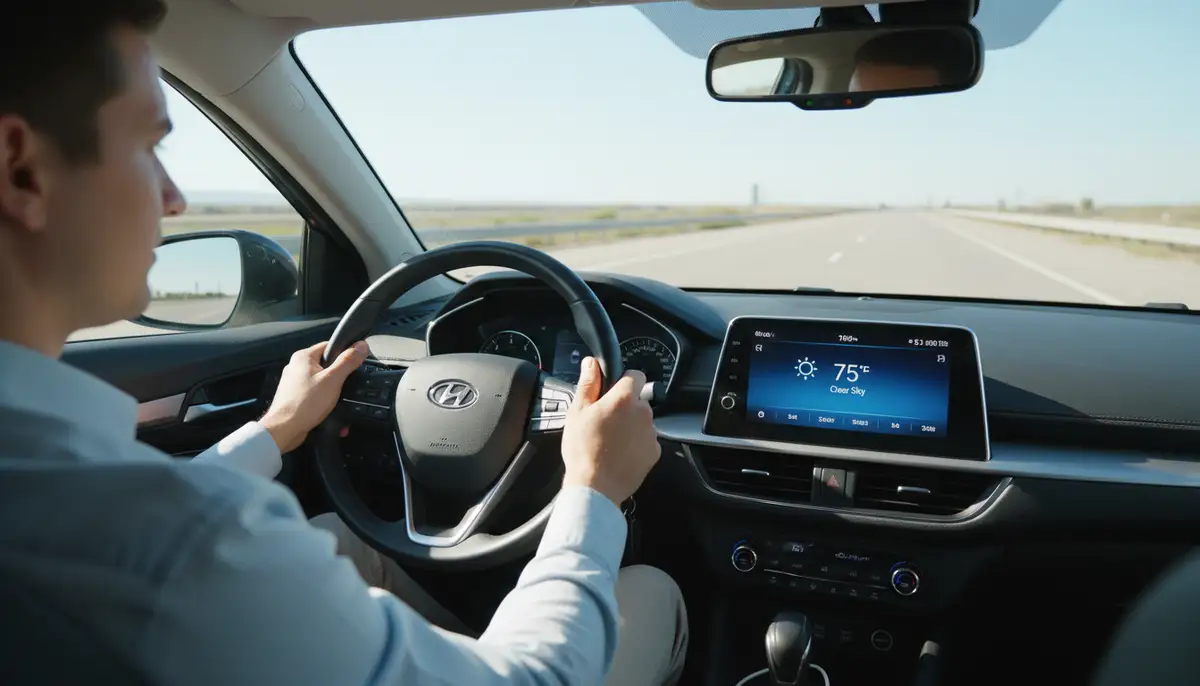
The android auto weather widget is more than just a convenience; it's a vital safety tool for modern drivers. By providing real-time weather information and alerts, it empowers you to make informed decisions on the road. Whether you rely on the native Google Assistant integration or a feature-rich third-party app, ensuring you have access to accurate weather data is paramount.
Take the time to set up and customize your android auto weather widget. Explore the different options available, from basic temperature displays to advanced radar maps. Staying informed about the weather ahead will not only make your journeys safer but also more enjoyable. Embrace the power of connected driving and let your android auto weather widget be your co-pilot against the elements.