

Mastering Your Android Home Screen: A Deep Dive into Setting Widget Android in 2025
Introduction: Elevate Your Android Experience with Widgets
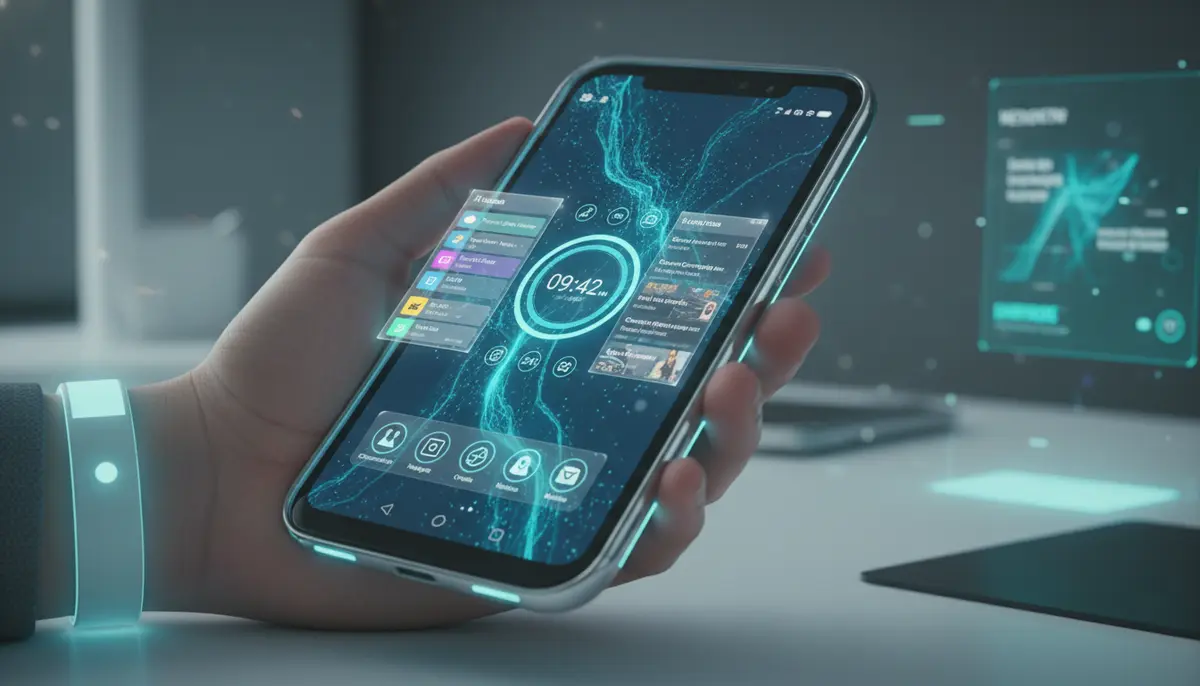
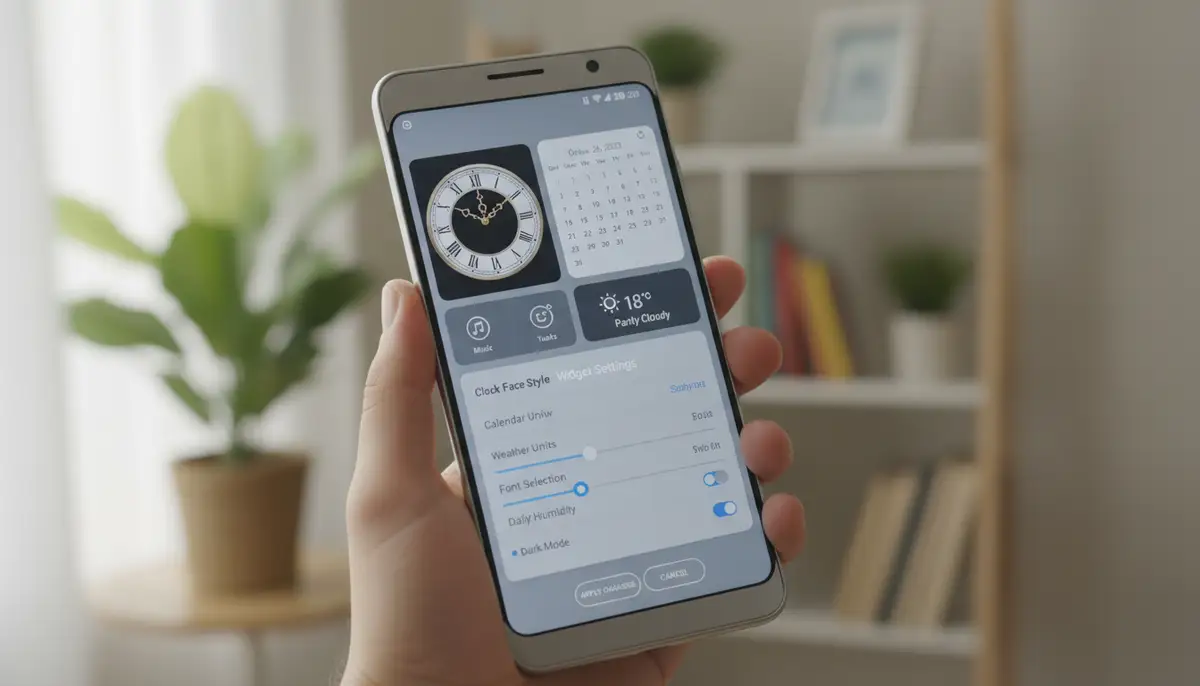
Your Android home screen is more than just a place for app icons. It is a powerful dashboard, ready to deliver information at a glance. In 2025, widgets have evolved significantly, offering unparalleled personalization and functionality. Understanding the nuances of setting widget Android correctly can transform your daily mobile interactions. This guide will walk you through everything, from basic setup to advanced customization, ensuring your device works perfectly for you.
Widgets provide immediate access to information and actions without opening full applications. They save time and streamline your workflow. Whether you want to check the weather, manage your calendar, or control smart home devices, a well-placed widget makes it easy. This article will help you master the art of setting widget Android, making your phone truly yours.
What Exactly Are Android Widgets and Why Use Them?
Before diving into the specifics of setting widget Android, let's clarify what a widget is. A widget is essentially a miniature application view that sits on your home screen or lock screen. It provides dynamic content and quick actions. Think of it as a window into an app, showing you the most important bits without needing to launch the full program. If you want a more detailed explanation, check out our comprehensive guide to understanding what a widget on Android is.
Widgets offer numerous benefits. They enhance productivity by reducing the steps needed to access information. They also allow for extensive personalization, making your phone feel unique. Imagine seeing your next appointment, current weather, and favorite contacts all on one screen. This level of convenience is precisely why mastering setting widget Android is so valuable.
The Basics of Setting Widget Android: Adding Widgets to Your Home Screen
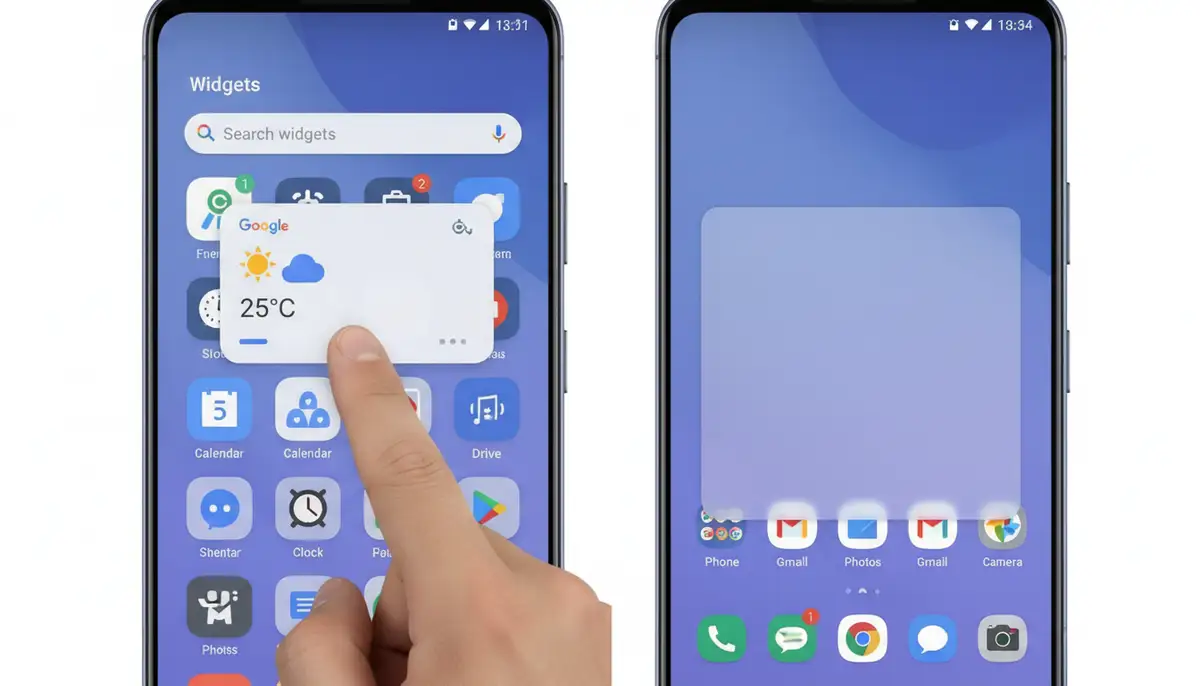
Adding a widget to your Android home screen is straightforward. The process has remained largely consistent across various Android versions, ensuring ease of use for everyone. You don't need to be a tech expert to get started. Here are the simple steps to begin setting widget Android on your device:
- Find an empty space on your home screen. Press and hold your finger on this empty area for a few seconds.
- A menu will pop up, usually offering options like 'Widgets,' 'Wallpapers,' and 'Home settings.' Tap on 'Widgets'.
- Browse through the list of available widgets. These are provided by the apps installed on your phone.
- Once you find the widget you want, tap and hold it. Then, drag it to your desired spot on the home screen.
- Lift your finger to place the widget. Some widgets might prompt you for initial setup or customization immediately after placement.
This basic method is the foundation for all widget interactions. For more visual guidance on adding widgets, you can refer to this helpful resource on how to add widgets on Android. Once placed, you can often resize or move widgets to fit your layout. This flexibility is key to effective home screen management.
Advanced Setting Widget Android: Resizing, Moving, and Removing
After placing a widget, you might want to adjust its size or position. This is part of the advanced setting widget Android process. Proper arrangement ensures your home screen remains organized and functional. It also helps you optimize space for other apps and widgets.
Many widgets are resizable. This feature lets you tailor them to your specific layout needs. To resize a widget:
- Tap and hold the widget you wish to resize for a moment.
- Release your finger. You should see a frame appear around the widget, often with draggable handles or dots on its edges.
- Drag these handles inward or outward to adjust the widget's size. The widget's content will adapt to the new dimensions.
- Tap anywhere outside the widget to confirm the new size.
Resizing is crucial for optimizing your home screen real estate. A larger widget might show more information, while a smaller one saves space for other elements. Experiment with different sizes to find what works best for each particular setting widget Android.
Moving widgets is as simple as adding them. You can rearrange your home screen layout anytime. To move a widget:
- Tap and hold the widget you want to move.
- Without lifting your finger, drag the widget to a new location on your home screen or even to a different home screen panel.
- Release your finger to place it.
This flexibility allows you to group related widgets or place your most-used ones within easy reach. Consider creating dedicated home screen panels for different categories, like work, personal, or entertainment. This thoughtful organization is a key aspect of effective setting widget Android.
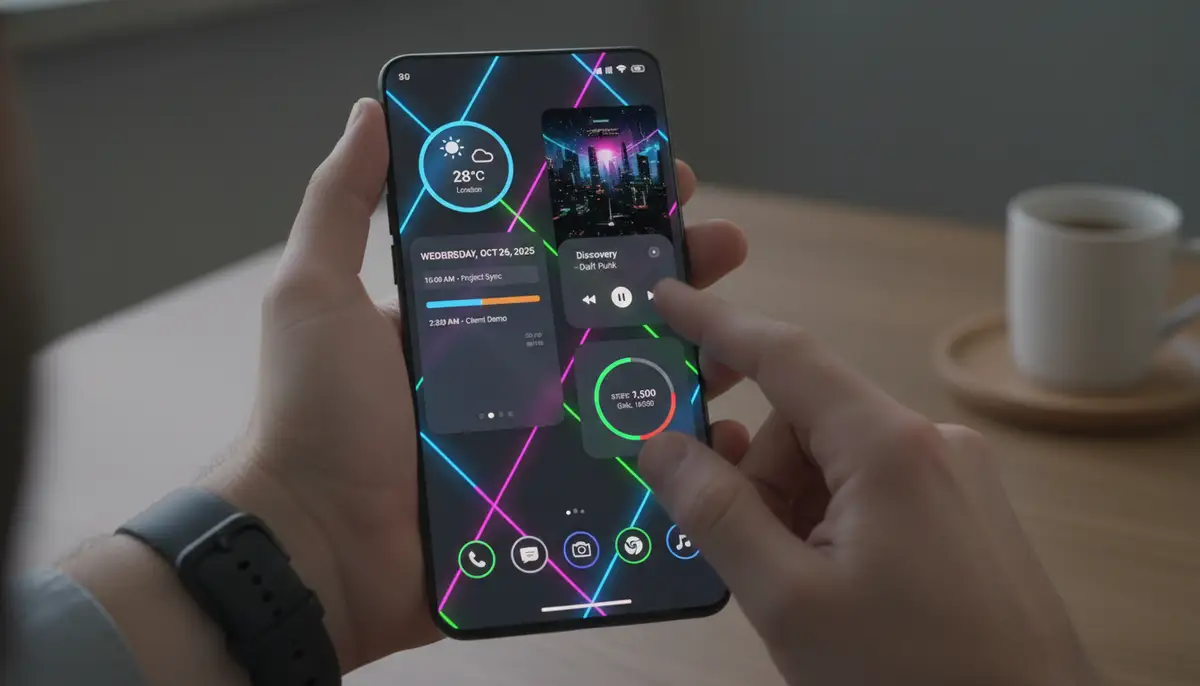
Sometimes, a widget might become unnecessary, or you might want to replace it. Removing a widget is quick and easy. To remove a widget:
- Tap and hold the widget you wish to remove.
- Drag it towards the top of the screen where a 'Remove' or trash can icon usually appears.
- Release your finger when the widget is over the 'Remove' area.
Removing unused widgets helps keep your home screen clutter-free. It also ensures your device runs efficiently. A clean home screen improves focus and reduces visual distractions. Always review your widgets periodically to ensure they still serve a purpose.
Customizing Your Widgets: Beyond Basic Setting Widget Android
The real power of Android widgets lies in their customization. Many widgets offer a range of settings that go far beyond simple placement. This allows you to tailor their appearance and functionality to your exact preferences. Effective setting widget Android often involves diving into these deeper options.
Widget Settings and Preferences
After placing a widget, tapping on it usually opens the associated app. However, some widgets offer specific configuration options directly. These might include:
- Transparency and Background: Adjusting how much of the wallpaper shows through the widget.
- Color Schemes: Changing text and icon colors to match your theme.
- Information Displayed: Selecting which data points are visible (e.g., specific calendar events, weather details, stock prices).
For instance, a weather widget might let you choose between Celsius and Fahrenheit, or display a 3-day forecast instead of just the current conditions. A news widget could allow you to select specific topics or sources. Exploring these options is a vital part of truly mastering setting widget Android.
Third-Party Widget Apps for Enhanced Customization
While many apps come with their own widgets, dedicated third-party widget apps take customization to the next level. These applications allow you to design widgets from scratch or use pre-made templates. Our own platform, Widgetopia, offers a vast collection of over 100,000 free homescreen widgets for Android (and iOS!), giving you endless possibilities to remix or design your own unique creations. This robust capability goes far beyond the basic setting widget Android functionality.
Other popular options in the market include solutions like Aesthetic Widgets, colorwidgets.app, and photowidget.net. These platforms also provide extensive tools for personalizing your home screen. They often offer unique features such as custom fonts, complex data integrations, and interactive elements. Exploring these apps can unlock a whole new dimension of home screen personalization.
For specialized control over system settings, you might find apps like 'Settings Widget' on the Google Play Store incredibly useful. This app allows you to create custom home screen widgets for system settings, giving you quick toggles for Wi-Fi, Bluetooth, screen brightness, and more, directly from your home screen. This significantly streamlines the process of adjusting common phone settings.
Popular Widget Categories and Their Benefits
Widgets come in countless forms, each serving a unique purpose. Understanding the most common categories can help you decide which ones are right for your workflow. Optimizing your selection is a crucial part of smart setting widget Android.
Productivity Widgets
These widgets help you stay organized and on top of your tasks. Examples include:
- Calendar Widgets: Display upcoming appointments and events.
- To-Do List Widgets: Show your daily tasks and allow quick completion.
- Notes Widgets: Provide quick access to important reminders or thoughts.
- Email Widgets: Offer a glance at your inbox or allow composing new messages quickly.
Integrating productivity widgets can significantly boost your efficiency. You can see your schedule without unlocking your phone or opening an app. This direct access is a major advantage of thoughtful setting widget Android.
Information Widgets
These widgets keep you informed with real-time data. They eliminate the need to launch specific applications just to check a quick fact. Examples include:
- Weather Widgets: Show current conditions, forecasts, and alerts.
- News Widgets: Display headlines from your preferred sources.
- Stock Market Widgets: Track your investments in real-time.
- Sports Score Widgets: Keep up with live game results.
Having crucial information readily available makes your device a more powerful tool. It allows for quick decision-making and keeps you updated throughout the day. This proactive information delivery is a core benefit of setting widget Android effectively.
Multimedia and Entertainment Widgets
Control your media playback or access entertainment options instantly. These widgets make your phone more enjoyable. Examples include:
- Music Player Widgets: Control playback (play, pause, skip) without opening the music app.
- Photo Widgets: Display a rotating slideshow of your favorite pictures.
- Podcast Widgets: Quick access to your latest podcast episodes.
These widgets add a layer of convenience to your entertainment experience. You can manage your audio with a single tap, making your commute or workout smoother. This seamless integration showcases the versatility of setting widget Android.
System and Utility Widgets
These widgets provide quick access to system settings or utility functions. They are essential for efficient device management. Examples include:
- Battery Widgets: Monitor battery level and usage.
- Data Usage Widgets: Track your mobile data consumption.
- Quick Settings Toggles: Turn Wi-Fi, Bluetooth, or flashlight on/off.
- Storage Widgets: View available storage space.
Optimizing these widgets can significantly improve your device's performance and battery life. Knowing your battery status at a glance, for example, helps you plan your charging. This proactive monitoring is a smart approach to setting widget Android for overall device health.
For those interested in timekeeping, a dedicated article on the Android Clock Widget provides expert insights into maximizing its utility and aesthetic appeal. It delves into various clock styles and customization options.
Optimizing Performance and Battery Life with Widgets
While widgets are incredibly useful, they do consume system resources. Excessive or poorly optimized widgets can impact your phone's performance and battery life. It's important to strike a balance when setting widget Android. Here's how to keep things running smoothly:
Choose Wisely
Only use widgets that you genuinely need and use frequently. Every active widget requires some processing power and data updates. Remove any widgets that are no longer essential. A minimalist approach often leads to better performance.
Monitor Data Usage
Widgets that constantly update, like news feeds or live stock tickers, can consume significant data and battery. Check your phone's data usage settings to identify data-hungry widgets. Adjust their refresh rates if possible, or consider removing them if they are not critical.
Keep Apps Updated
Developers often release updates that improve widget efficiency and fix bugs. Ensure all your apps, especially those providing widgets, are up to date. This simple step can prevent many performance issues related to setting widget Android.
Consider Static vs. Dynamic Widgets
Some widgets are more dynamic than others. A static photo widget, for example, uses fewer resources than a live weather radar widget. Understand the resource demands of each widget before adding it. Prioritize static or less frequently updating widgets for essential information.
Troubleshooting Common Widget Issues
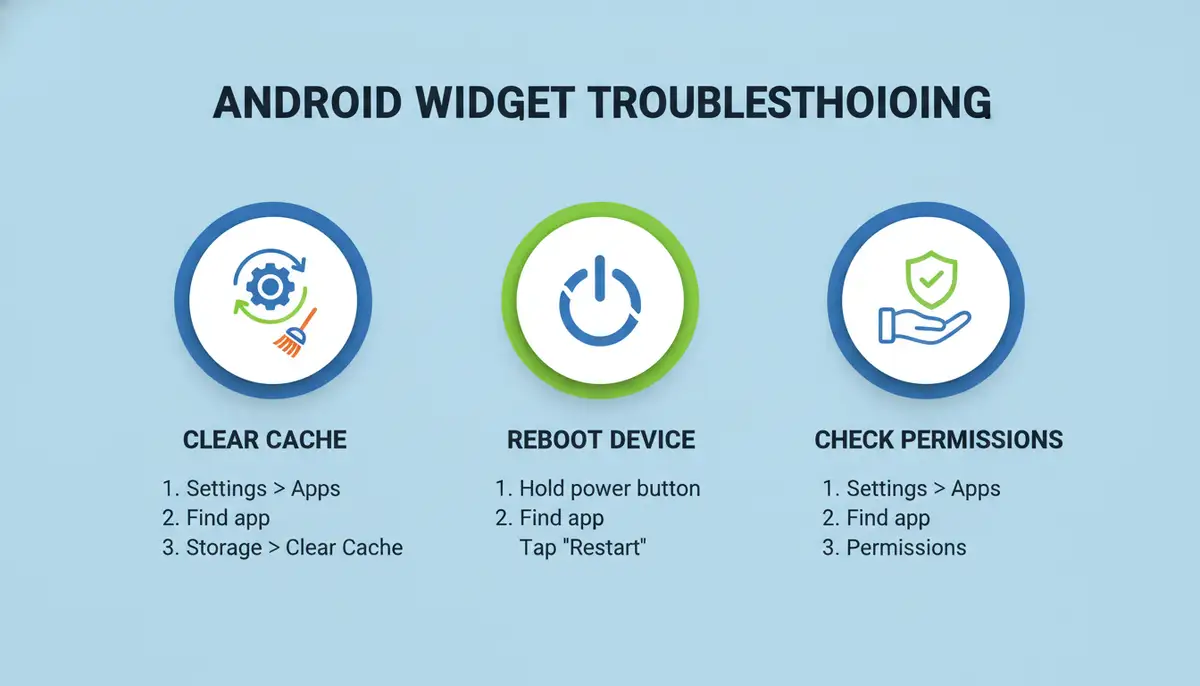
Even with careful setting widget Android, you might occasionally encounter issues. Widgets can sometimes disappear, fail to update, or display incorrect information. Here are some common problems and their solutions:
Widget Not Updating
- Check App Permissions: Ensure the app providing the widget has necessary permissions, especially for background activity or location access.
- Restart the App: Force close the app associated with the widget and reopen it.
- Reboot Your Phone: A simple restart can often resolve temporary glitches.
- Check App Settings: Some apps have specific widget refresh interval settings. Adjust them to a more frequent update if needed.
Widget Disappeared or Blank
- Re-add the Widget: Remove the problematic widget and add it back to your home screen.
- Clear App Cache: Go to your phone's Settings > Apps > [App Name] > Storage > Clear Cache. Do NOT clear data unless you are prepared to reconfigure the app.
- Check for App Updates: An outdated app might have compatibility issues with your Android version.
Widget Not Responding
- Restart Your Phone: This often resolves temporary unresponsiveness.
- Reinstall the App: As a last resort, uninstall the app and reinstall it. This will reset all app data, so back up anything important first.
Most widget issues are minor and easily fixable. Patience and systematic troubleshooting are key. Regular maintenance, such as clearing app caches, can also prevent many problems. Always ensure your device's operating system is also up to date for optimal compatibility when setting widget Android.
Organizing Your Home Screen with Widgets and Folders
A well-organized home screen is efficient and aesthetically pleasing. Combining widgets with app folders can create a highly functional and uncluttered interface. This thoughtful arrangement is an advanced aspect of setting widget Android.
Strategic Placement
Place your most important widgets where they are easily visible and accessible. For example, a calendar widget might go on your primary home screen, while a less frequently checked stock widget could be on a secondary screen. Think about your daily habits when deciding on placement.
Using Folders Effectively
Folders help consolidate apps, freeing up space for more widgets. You can create folders by dragging one app icon on top of another. Name your folders clearly, such as 'Social,' 'Work,' or 'Utilities.' This keeps your app drawer tidy and your home screen focused on widgets. For detailed instructions on how to organize apps and shortcuts into folders, Google Support offers excellent guidance.
| Widget Type | Best Use Case | Example App/Function |
|---|---|---|
| Productivity | Quick access to tasks & schedule | Google Calendar, Todoist |
| Information | Real-time data at a glance | Google Weather, News Feed |
| Multimedia | Instant media control | Spotify, YouTube Music |
| System/Utility | Device monitoring & toggles | Battery monitor, Wi-Fi toggle |
| Custom Widgets | Personalized design & data | Widgetopia, Aesthetic Widgets |
The Future of Setting Widget Android in 2025 and Beyond
The landscape of Android widgets is constantly evolving. In 2025, we are seeing more intelligent, adaptive, and interactive widgets. Expect further integration with AI, offering predictive information based on your habits and context. For example, a widget might proactively show your commute time before you leave for work, or suggest a restaurant when you're in a new city.
Dynamic widgets that change their content and appearance based on the time of day or your location are becoming more common. Imagine a single widget transforming from a morning news brief to an afternoon calendar view, then to an evening media controller. This level of smart adaptation will redefine how we think about setting widget Android.
Additionally, expect deeper integration with smart home ecosystems. Widgets will likely become central control panels for your connected devices, allowing you to adjust lights, thermostats, and security systems directly from your home screen. The potential for seamless control and personalized experiences is immense, making the art of setting widget Android even more crucial.
Conclusion: Unlock Your Android's Full Potential
Mastering the art of setting widget Android is more than just a technical skill; it's about reclaiming control over your digital environment. By strategically placing, customizing, and managing your widgets, you can transform your Android home screen into a powerful, personalized hub. This guide has covered everything from the basics of adding and resizing to advanced customization and troubleshooting. Remember, your home screen should serve you, not distract you.
In 2025, the possibilities for personalization are greater than ever. Whether you're using built-in options or exploring third-party solutions like Widgetopia, the power to create a truly unique and efficient mobile experience is in your hands. Take the time to experiment, optimize, and make your Android device an extension of your personal style and productivity needs. Start customizing your home screen widgets today and experience the difference!