

How to Do App Widgets: A Comprehensive Guide for Developers and Users in 2025
Introduction: Mastering App Widgets in 2025
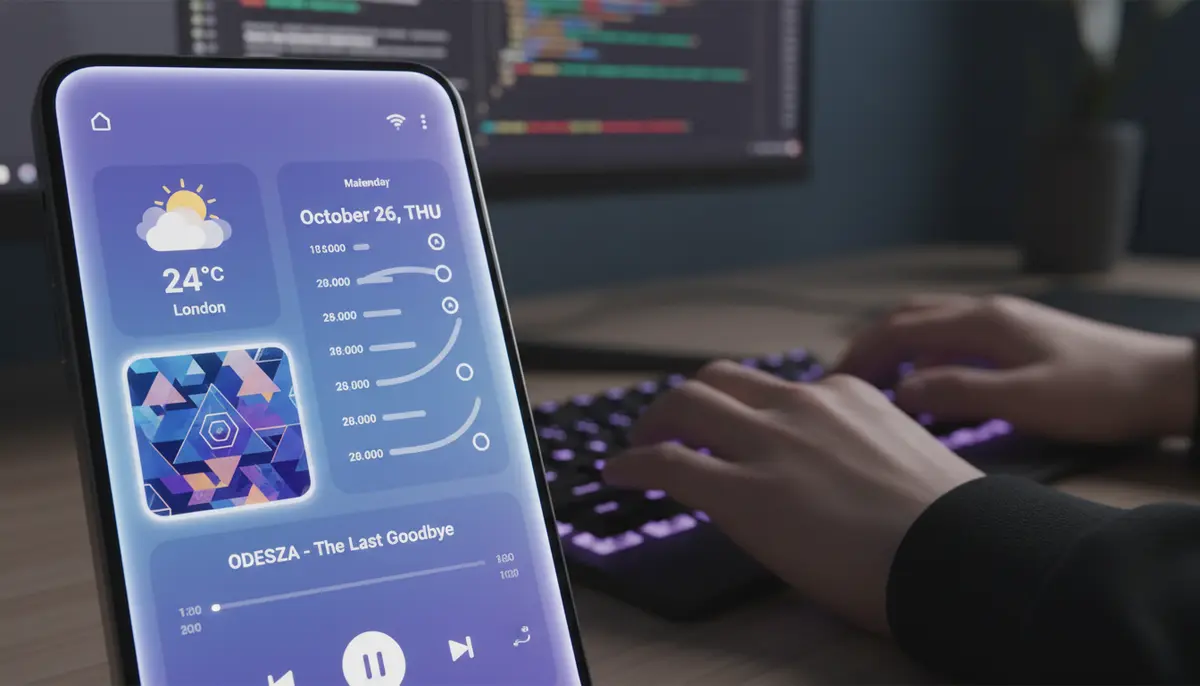
In 2025, mobile devices are more integrated into our lives than ever before. App widgets have become essential tools for quick information access and seamless interaction. If you're wondering how to do app widgets, whether as a developer creating them or a user optimizing your device, you've come to the right place. This guide will walk you through everything you need to know about these powerful mini-applications. We will explore their benefits, design principles, and the technical steps involved in their creation for both Android and iOS platforms.
Widgets offer a glanceable view of an app's most important features directly from your home screen or lock screen. They save you time by reducing the need to open full applications for simple tasks. Understanding how to do app widgets correctly can significantly enhance user experience and engagement. Let's dive into the world of app widgets and unlock their full potential.
What Are App Widgets?
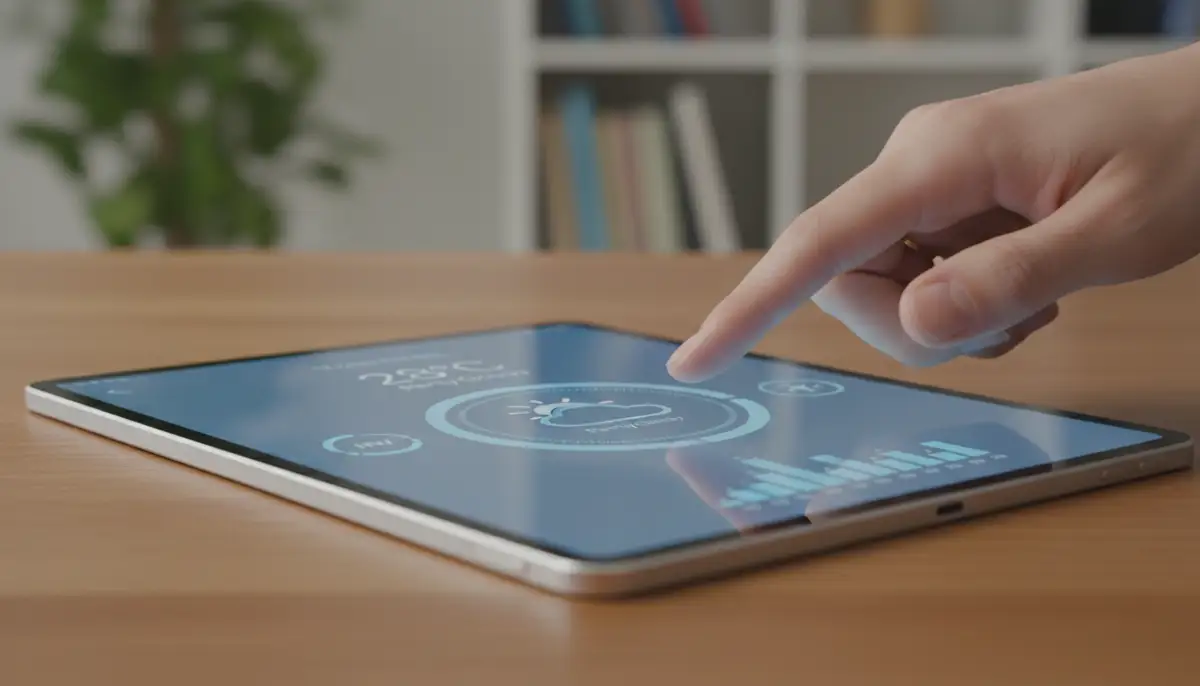
App widgets are small, interactive components that display timely information or enable quick actions from your device's home screen or lock screen. They act as extensions of your main application, offering a snapshot of its functionality without requiring the user to launch the full app. Think of them as dynamic shortcuts that provide real-time data or controls.
For example, a weather widget shows you the current temperature. A calendar widget displays your upcoming appointments. These small windows into your apps are incredibly convenient. They help users stay informed and productive throughout their day. Learning how to do app widgets effectively means understanding this core concept of glanceability and immediate utility.
Why Use App Widgets?
App widgets offer numerous benefits for both users and developers. They streamline the mobile experience and increase app engagement. Here are some key reasons why widgets are so valuable:
- Instant Information Access: Get critical updates like weather, news headlines, or stock prices without opening the app.
- Quick Actions: Perform common tasks such as toggling Wi-Fi, playing music, or marking a to-do item directly from the home screen.
- Enhanced User Experience: Provide a more personalized and efficient interaction with your device, tailoring the home screen widgets to your daily needs.
- Increased App Engagement: Keep your app top-of-mind by continuously displaying relevant content, encouraging more frequent interaction.
- Personalization: Users can customize their device's look and feel with widgets that match their aesthetic and functional preferences. This includes lock screen widgets, which offer even more immediate access.
- Time-Saving: Reduce the number of taps and swipes needed to access information or perform actions, making the mobile experience smoother.
These benefits highlight why knowing how to do app widgets is crucial in today's mobile landscape. They transform a static home screen into a dynamic, interactive dashboard.
Understanding Widget Types
Not all widgets are created equal. Different types serve different purposes. Understanding these categories helps you decide how to do app widgets that best fit your app's functionality. Here's a breakdown:
| Widget Type | Description | Example |
|---|---|---|
| Information Widgets | Display static or periodically updated data. | Weather forecast, stock ticker, calendar events |
| Collection Widgets | Show multiple elements of the same type, often scrollable. | Email inbox, photo gallery, news feed |
| Control Widgets | Provide quick access to app functions or settings. | Music playback controls, flashlight toggle, Wi-Fi switch |
| Hybrid Widgets | Combine features of information and control widgets. | Fitness tracker showing steps and a 'start workout' button |
How to Do App Widgets: The Basics for Users
Before diving into development, let's cover how users interact with widgets. This perspective is vital for developers to understand the user journey. Knowing how to do app widgets from a user's standpoint ensures you build something intuitive and helpful.
Getting Started with Android Widgets
Adding widgets to your Android home screen is straightforward. You typically long-press an empty space on your home screen. Then, you select the 'Widgets' option from the menu that appears. From there, you can browse through available widgets from your installed apps. You then drag and drop your chosen widget onto your home screen. You can often resize them to fit your preference. For a detailed guide on how to add apps, shortcuts & widgets to your Home screens, check out this helpful resource from Google Support.
Many users customize their home screen widgets to display essential information. This includes things like their next appointment or recent messages. It's a powerful way to make your phone truly yours. If you prefer a visual guide, this video explains how to add widgets to your Android home screen:
.Mastering iOS Widgets
On iOS, adding widgets is equally simple. From your Home Screen, touch and hold a widget or an empty area until the apps jiggle. Then, tap the '+' button in the upper-left corner. This opens the widget gallery, where you can search for and select widgets from your apps. You choose the size, then tap 'Add Widget'. You can also customize lock screen widgets, which provide quick access to information without unlocking your phone. Apple provides a comprehensive guide on how to add and edit widgets on your iPhone.
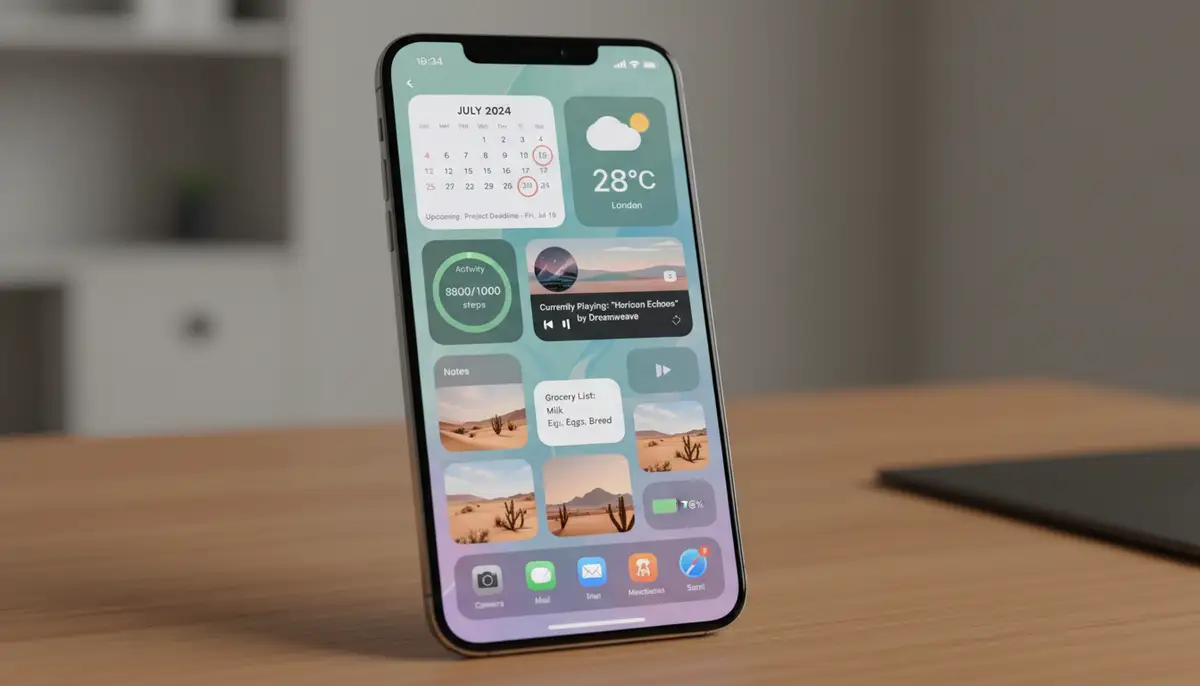
iOS widgets come in small, medium, and large sizes. Each size offers different levels of information density. This flexibility allows for highly personalized layouts. For instance, a small health widgets can show your step count. A large one might display your activity trends over the week. Knowing how to do app widgets on iOS means leveraging these size options effectively.
Designing Effective App Widgets
For developers, creating a great widget goes beyond just functionality. Design plays a crucial role in usability and adoption. When thinking about how to do app widgets, consider these design principles:
Keep it Simple and Glanceable
Widgets are for quick glances, not deep dives. Prioritize essential information. Avoid clutter and unnecessary elements. Users should grasp the widget's purpose and data instantly. Focus on clarity and conciseness above all else. A clean design is always more effective.
Focus on Key Information and Actions
Identify the most valuable piece of information or the most frequent action users take within your app. Make that the centerpiece of your widget. For example, a to-do list app's widget should show upcoming tasks. A music app's widget should offer playback controls. This targeted approach is key to how to do app widgets that users love.
Ensure Interactivity (Where Appropriate)
While glanceable, widgets can also be interactive. Allow users to tap on a section to open the app to a specific screen. Or, provide buttons for quick actions like 'mark as done' or 'refresh'. However, don't overdo it. Too many interactive elements can make a widget feel like a miniature app, defeating its purpose. Balance is crucial.
Consider Different Sizes and Layouts
Offer multiple widget sizes (small, medium, large) to give users flexibility. Design each size thoughtfully, optimizing the layout for the available space. A small widget might show a single data point. A medium one could show several, and a large one might include a small list or chart. This adaptability is part of how to do app widgets right.
Maintain Brand Consistency
Your widget should feel like a natural extension of your app. Use your app's color palette, typography, and iconography. This creates a cohesive user experience across your app and its widget. Brand consistency builds trust and recognition. It makes your widget feel familiar and reliable.
Technical Deep Dive: How to Do App Widgets on Android
Developing Android widgets involves several components. You need to understand how they work together to create a functional and efficient widget. This section will guide you through the technical steps of how to do app widgets for Android.
Android Widget Architecture
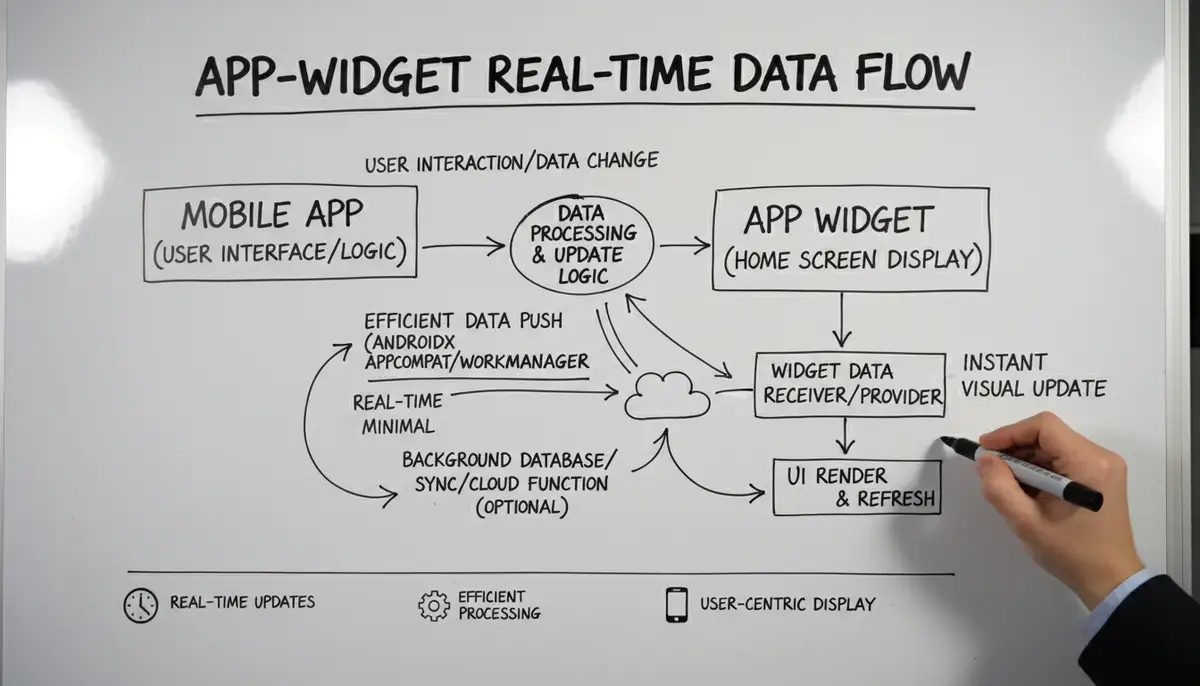
Android widgets rely on a `BroadcastReceiver` subclass called `AppWidgetProvider`. This class receives broadcasts when the widget is updated, enabled, disabled, or deleted. The widget's layout is defined using XML, similar to regular app layouts. However, widgets use `RemoteViews` to display content, which limits the types of views you can use. Understanding this architecture is foundational to how to do app widgets on Android.
Creating the Widget Provider
First, you need to create an `AppWidgetProvider` class. This class extends `BroadcastReceiver` and handles widget lifecycle events. You'll override methods like `onUpdate()`, `onEnabled()`, and `onDisabled()`. The `onUpdate()` method is where you define what happens when the widget needs to refresh its content. This is where you'll update the `RemoteViews` with new data. For a basic example of how to create a basic widget of an Android app, check out this GeeksforGeeks tutorial.
Designing the Widget Layout
Widget layouts are defined in XML files, typically located in `res/layout/`. Remember, `RemoteViews` has limitations. You can use standard layouts like `LinearLayout` and `RelativeLayout`, but only a subset of `View` classes are supported (e.g., `TextView`, `ImageView`, `Button`). You cannot use custom views directly. Keep your layouts simple and efficient to ensure smooth performance. This constraint is important when considering how to do app widgets that are performant.
Updating Widget Content
To update your widget, you create a `RemoteViews` object and set its properties. You can update text, images, and set click listeners using `PendingIntent`s. These `PendingIntent`s allow the widget to launch an activity or send a broadcast when tapped. The `AppWidgetManager` then applies these updates to the widget instances. Scheduling updates can be done using `AlarmManager` or `WorkManager` for more robust background processing. This ensures your widget always shows fresh data.
Manifest Declaration
Finally, you must declare your `AppWidgetProvider` in your app's `AndroidManifest.xml`. You'll specify an `AppWidgetProviderInfo` XML file. This file defines metadata about your widget, such as its initial size, update frequency, and preview image. This declaration tells the Android system about your widget. It makes it available for users to add to their home screens. Proper configuration here is essential for how to do app widgets that are discoverable.
Technical Deep Dive: How to Do App Widgets on iOS
iOS widgets, powered by WidgetKit, offer a modern and powerful way to extend your app's functionality. Understanding the iOS framework is key to how to do app widgets that are integrated and performant. Let's explore the technical aspects.
iOS WidgetKit Fundamentals
WidgetKit is Apple's framework for creating widgets. It emphasizes privacy, performance, and glanceability. iOS widgets are built using SwiftUI, making them highly declarative and easy to design. Unlike Android, iOS widgets run in a separate process. This means they cannot directly access your main app's data. You must use shared containers or App Groups to share data securely. This architectural difference is crucial when learning how to do app widgets for iOS.
Creating a Widget Extension
To start, you add a new 'Widget Extension' target to your Xcode project. This creates a new bundle that contains your widget's code. Inside this extension, you'll find an `Entry` struct, a `TimelineProvider`, and the main `Widget` struct. The `TimelineProvider` is responsible for providing data entries to the widget at specific times. This ensures the widget displays up-to-date information efficiently. It's a core component of how to do app widgets on iOS.
Designing with SwiftUI
All iOS widgets are built with SwiftUI. This declarative UI framework makes it intuitive to design responsive and beautiful interfaces. You define your widget's appearance for each size (small, medium, large) within your `Widget` struct. SwiftUI's composable views allow for flexible layouts that adapt to different widget families. This makes it easier to create visually appealing widgets. Leveraging SwiftUI's power is central to how to do app widgets with great aesthetics.
Configuring Widget Intents
For configurable widgets, you use `IntentConfiguration`. This allows users to customize aspects of your widget, such as selecting a specific city for a weather widget or a particular playlist for a music widget. You define these configurable options using an `Intents Definition File`. This provides a user-friendly interface for customization. Intents are a powerful feature when considering how to do app widgets that are highly adaptable to user preferences.
Handling User Interaction
When a user taps on an iOS widget, it typically launches your main app. You can specify a URL to open a specific part of your app. This is done using `widgetURL()` modifier in SwiftUI. For instance, tapping a calendar widget might open your app to that specific day's events. Direct interactivity within the widget is limited to prevent performance issues. This design choice highlights Apple's focus on quick glances and app launching. It's a key consideration for how to do app widgets on iOS.
Best Practices for App Widget Development
Regardless of the platform, certain best practices ensure your widgets are high-quality and well-received. Following these guidelines will improve your chances of success. They provide a roadmap for how to do app widgets effectively.
Performance Optimization is Key
Widgets should be lightweight and fast. Avoid heavy computations or network requests on the main thread. Optimize image assets and data fetching. Slow widgets can drain battery and frustrate users. Remember, widgets are meant to be glanceable and responsive. Efficient code is crucial for how to do app widgets that perform well.
Accessibility Matters
Design your widgets with accessibility in mind. Ensure proper contrast for text, provide content descriptions for images, and support dynamic type sizes. This makes your widgets usable for everyone, including those with visual impairments. Inclusive design broadens your audience. It demonstrates a commitment to all users.
Test Thoroughly Across Devices
Test your widgets on various devices, screen sizes, and operating system versions. This helps identify layout issues or performance bottlenecks. Emulators are useful, but real device testing is essential for a true user experience. Thorough testing ensures reliability. It helps you deliver a polished product.
Integrate User Feedback
Listen to your users. Feedback on widget functionality, design, or desired features can be invaluable. Use analytics to understand how users interact with your widgets. Iterative improvements based on user needs lead to more successful widgets. This user-centric approach refines how to do app widgets that truly resonate.
Monetization Strategies for App Widgets
While widgets primarily enhance user experience, they can also contribute to your app's monetization strategy. When considering how to do app widgets, think about how they can indirectly or directly generate revenue.
Premium Features
Offer advanced widget functionalities as part of a premium app subscription or one-time purchase. For example, a free weather widget might show current temperature. A premium widget could include hourly forecasts, severe weather alerts, or radar maps. This incentivizes users to upgrade. It adds value to your paid tiers.
Subscription Models
Integrate your widgets into your app's existing subscription model. Offer exclusive widget designs, data sources, or interactive capabilities to subscribers. This can increase the perceived value of your subscription. It provides another compelling reason for users to subscribe. Many popular apps leverage this strategy successfully.
Affiliate Marketing or Sponsored Content
For content-heavy apps, widgets could subtly display sponsored content or affiliate links. This must be done transparently and without compromising user experience. For instance, a news widget could feature a 'sponsored story' label. Or a shopping list widget might suggest products from affiliate partners. This approach requires careful ethical consideration.
The Future of App Widgets
The evolution of app widgets is ongoing. We can expect even more sophisticated and integrated experiences in the coming years. Understanding these trends helps you prepare for how to do app widgets that remain relevant. The landscape of home screen widgets is always changing.
AI Integration
Expect widgets to become smarter with AI. They will anticipate your needs and proactively display relevant information. For example, a widget might show travel times to your next meeting based on your calendar and live traffic. Or, it could suggest a playlist based on your mood and time of day. Personalization will reach new heights. AI will transform how to do app widgets, making them truly predictive.
Dynamic Content and Adaptive Interfaces
Widgets will likely offer more dynamic content that adapts based on context. This includes time of day, location, or even user activity. Interfaces may become more fluid, seamlessly transitioning between different data views within the same widget. This reduces cognitive load. It delivers information exactly when and where it's most useful.
Cross-Platform Consistency
As development tools evolve, we may see greater consistency in widget development across iOS and Android. Frameworks like Flutter or React Native are continually improving their widget support. This could streamline the process for developers. It would make it easier to deliver a consistent experience on both platforms. This consistency is a major goal for how to do app widgets efficiently.
Conclusion: Your Path to Mastering How to Do App Widgets
App widgets are more than just decorative elements. They are powerful tools that enhance mobile productivity and personalization. Whether you're a user looking to optimize your device or a developer aiming to extend your app's reach, understanding how to do app widgets is a valuable skill in 2025. We've covered the basics for users, the technical intricacies for developers on both Android and iOS, and essential design principles.
The mobile landscape continues to evolve. Widgets will only grow in importance, offering even more intelligent and integrated experiences. By focusing on user needs, performance, and thoughtful design, you can create widgets that truly stand out. Companies like widgetsmith.app, Aesthetic Widgets, and colorwidgets.app have shown the market's demand for customization. However, with platforms like Widgetopia, you have access to a vast collection of 100,000 free homescreen widgets for iPhone, iPad, and Android. You can remix or design your own, putting ultimate control in your hands.
Embrace the potential of app widgets. Start experimenting with their creation and customization today. You'll not only improve your own mobile experience but also contribute to a richer, more interactive mobile ecosystem. Mastering how to do app widgets is a skill that will serve you well into the future.