

Master Your Device: How to Add Widgets on iPhone 8 in 2025
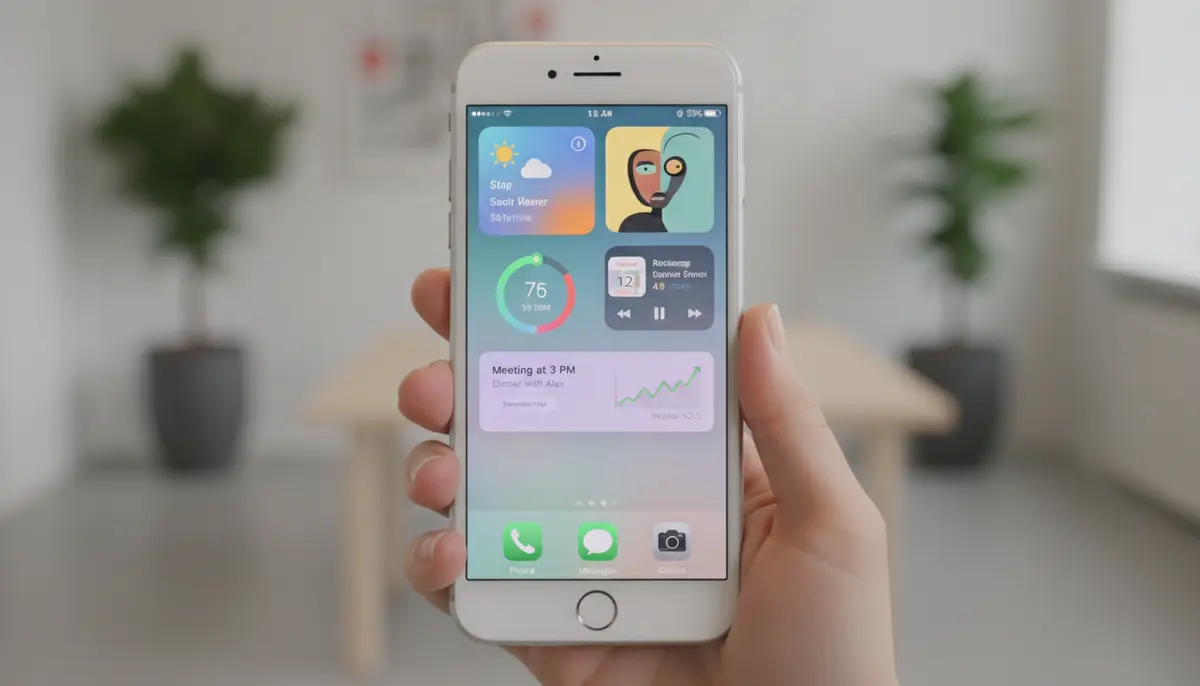
Even in 2025, your trusty iPhone 8 remains a capable device. You might think some newer features are out of reach, but that's not always true. Many personalization options are still available. A fantastic way to boost your phone's utility is by adding widgets. This guide will show you exactly how to add widgets on iPhone 8, helping you make the most of your device.
Widgets offer quick access to information and functions without opening full apps. They transform your Home Screen and Today View into dynamic dashboards. We will cover everything you need to know, from basic setup to advanced customization. Get ready to personalize your iPhone 8 like never before.
Why Widgets Matter on Your iPhone 8 in 2025
Widgets are more than just pretty icons. They provide instant glances at important data. Imagine seeing your next calendar appointment, the current weather, or your activity rings without unlocking your phone or launching an application. This saves you time and effort every single day. For an iPhone 8 user, this efficiency is incredibly valuable.
Keeping an older phone relevant means leveraging all its available features. Widgets help your iPhone 8 feel fresh and modern. They allow you to tailor your device to your specific needs. You can prioritize information that matters most to you. This personalization makes your phone truly yours. Learning how to add widgets on iPhone 8 extends its lifespan and usefulness.
Understanding Widget Basics for iPhone 8
Before we dive into the 'how-to,' let's clarify what widgets are. Widgets are essentially miniature versions of your apps. They live on your Home Screen or in the Today View. They display live information and offer quick actions. Think of them as a window into your apps, always open and ready.
On your iPhone 8, running up to iOS 16, widgets come in a few standard sizes. You'll typically find small, medium, and large options. A small widget takes up a 2x2 app icon space. A medium widget is 4x2, and a large widget is 4x4. Each size offers different levels of detail and functionality. Knowing these sizes helps you plan your Home Screen layout effectively.
Widget Stacks are another useful feature. These allow you to layer multiple widgets on top of each other. You can then swipe through them to see different information in the same space. This is perfect for maximizing screen real estate. We will explore how to create and manage these later in the guide.
Step-by-Step: How to Add Widgets on iPhone 8 Home Screen
Adding widgets to your iPhone 8 Home Screen is a straightforward process. You do not need any special tools or advanced technical skills. Just follow these simple steps. Soon, you will know exactly how to add widgets on iPhone 8, transforming your daily phone experience.
Accessing the Jiggle Mode
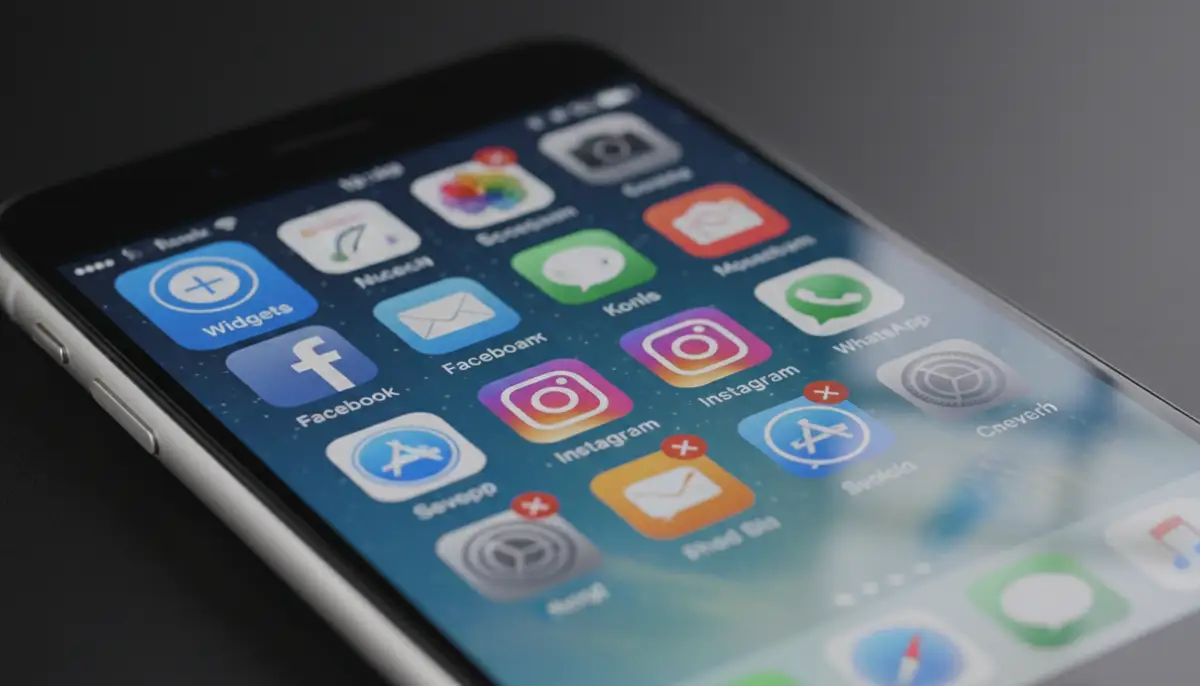
The first step is to enter 'jiggle mode.' This is the same mode you use to rearrange or delete apps. Find an empty space on your iPhone 8 Home Screen. Press and hold your finger down on this empty spot. Do not press too hard, just a gentle, sustained touch. After a moment, all your app icons will start to jiggle. A small 'X' will appear on each app, and a '+' (plus) button will show up in the top-left corner of your screen. This indicates you are ready to add widgets.
Tapping the Add Button
Once your apps are jiggling, locate the '+' button in the top-left corner. Tap this button. This action opens the Widget Gallery. The Widget Gallery is where you will find all the available widgets from your installed apps. It's your gateway to customizing your Home Screen. This is a crucial step in understanding how to add widgets on iPhone 8 effectively.
Browsing and Selecting Widgets
Inside the Widget Gallery, you will see a list of apps that offer widgets. You can scroll through this list to browse. Alternatively, if you know which app's widget you want, use the search bar at the top. Simply type the app's name, like 'Weather' or 'Calendar.' This makes finding specific widgets much faster.
Many apps, both built-in and third-party, provide widgets. You might discover new ways to interact with your favorite applications. Companies like Widgetopia, for example, offer a vast collection of free homescreen widgets. You can even remix or design your own unique widgets. Other popular solutions include widgetsmith.app and colorwidgets.app, which allow for deep customization and aesthetic choices. Even Aesthetic Widgets provides great options for personalizing your device.
Choosing Widget Size and Adding to Home Screen
After selecting an app, you'll see different widget sizes available for that app. Swipe left or right to preview the small, medium, and large options. Each size shows different information. For instance, a small Weather widget might just show the current temperature, while a medium one could include the forecast. Choose the size that best fits your needs and Home Screen layout.
Once you have chosen your preferred size, you have two ways to add it. You can tap the 'Add Widget' button at the bottom of the screen. This will place the widget on the next available space on your current Home Screen page. Alternatively, you can drag the widget directly from the gallery onto your Home Screen. This gives you more control over its initial placement. For more details on customizing your Home Screen, check out this comprehensive guide from ATT.
Arranging Your Widgets
After adding a widget, you might want to move it around. While still in 'jiggle mode,' you can drag and drop widgets just like apps. Place them wherever you like on your Home Screen. You can even drag them between different Home Screen pages. This flexibility allows you to create a truly personalized layout. Experiment with different arrangements until you find what works best for you. For more insights on optimizing your home screen widgets, explore our dedicated resources.
When you are happy with the placement of your widgets and apps, tap 'Done' in the top-right corner. This exits 'jiggle mode' and saves your changes. Your new widgets are now active and ready to use. You have successfully learned how to add widgets on iPhone 8 and arrange them to your liking.
Advanced Widget Features for Your iPhone 8
Adding individual widgets is just the beginning. Your iPhone 8 supports several advanced features that enhance widget functionality. These features help you get even more out of your Home Screen. Mastering them will make your device incredibly efficient.
Creating Smart Stacks
Smart Stacks are a fantastic way to save space while keeping multiple widgets accessible. A Smart Stack can automatically rotate through widgets based on factors like time of day or your location. You can also manually swipe through a stack to see different widgets. To create a Smart Stack, simply drag one widget on top of another widget of the same size. They will merge into a stack.
Once you have a stack, you can add more widgets to it. Just drag new widgets of the same size onto the existing stack. To remove a widget from a stack, enter 'jiggle mode,' tap the stack, and then tap the minus sign on the widget you want to remove. Smart Stacks are a powerful tool for managing your Home Screen information.
Editing Widget Content
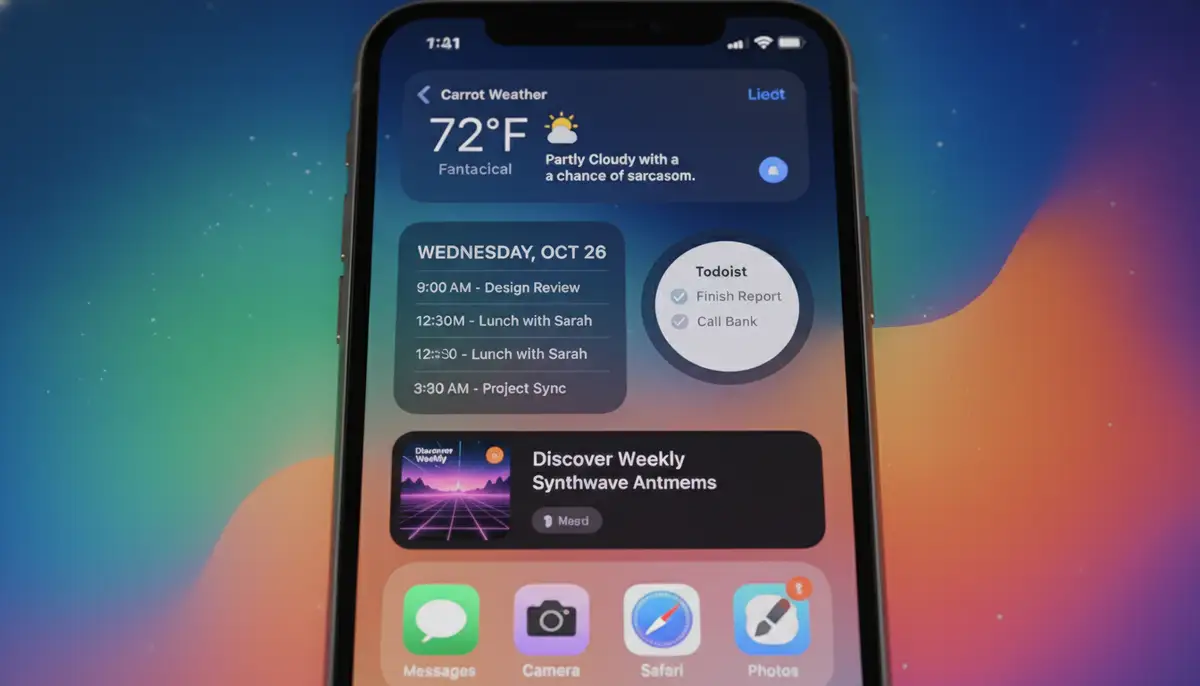
Many widgets offer customization options. These allow you to fine-tune the information they display. To edit a widget, enter 'jiggle mode' by long-pressing an empty space. Then, tap on the specific widget you wish to edit. A menu will pop up, and you'll see an 'Edit Widget' option. Tap this to access its settings.
For example, a Calendar widget might let you choose which calendar to display. A Stocks widget allows you to select specific companies to track. A Weather widget lets you pick a city. Always check the 'Edit Widget' options for your chosen widgets. This level of control helps you get the most relevant information at a glance. For comprehensive details on how to add, edit, and remove widgets on your iPhone, refer to Apple's official support guide.
Removing Widgets
Sometimes you might want to remove a widget you no longer use. The process is very similar to removing an app. Enter 'jiggle mode' by long-pressing an empty area on your Home Screen. Then, tap the minus sign ('-') in the top-left corner of the widget you want to remove. Confirm your choice when prompted. It's a quick and easy way to keep your Home Screen tidy and efficient. This simplicity makes it easy to manage your widgets after you learn how to add widgets on iPhone 8.
Enhancing Your iPhone 8 with Third-Party Widgets
While Apple's built-in widgets are useful, the true power of widgets comes from third-party apps. Developers create innovative widgets that integrate seamlessly with your iPhone 8. These can provide features not available natively. Exploring the App Store for widget-enabled apps opens up a world of possibilities for personalization and productivity.
Consider the vast ecosystem of apps. Many popular services now offer companion widgets. For instance, your favorite to-do list app might have a widget showing upcoming tasks. A news app could display headlines. Fitness trackers can show your daily progress. Companies like Widgetopia specialize in offering an extensive array of custom widgets, allowing you to truly make your Home Screen unique. This is a great way to personalize your device after you understand how to add widgets on iPhone 8.
Finding Great Widget Apps
The best place to find new widget apps is the App Store. Use the search function and look for terms like 'widgets,' 'Home Screen widgets,' or specific app categories you are interested in. Many apps will highlight their widget capabilities in their descriptions. You can also check app review sites and tech blogs for recommendations. Community forums are also great places to discover hidden gems.
- App Store search for 'widgets' or specific app categories.
- Read tech blogs and app review sites for recommendations.
- Join online communities and forums to discover user-favorite widget apps.
Popular Widget Categories
Widgets span a wide range of categories. Productivity widgets can help you stay organized with to-do lists or quick notes. Information widgets provide instant updates on news, weather, or stocks. Utility widgets show battery levels or device storage. Entertainment widgets might offer music controls or quick access to streaming content. Don't forget health widgets, which can display your daily steps, heart rate, or water intake directly on your Home Screen.
| Category | Example Widget |
|---|---|
| Productivity | To-Do List, Calendar, Reminders |
| Information | Weather Forecast, News Headlines, Stock Ticker |
| Utility | Battery Levels, Screen Time, App Shortcuts |
| Entertainment | Music Player Controls, Podcast Player |
| Health & Fitness | Activity Rings, Step Counter, Water Tracker |
Understanding Lock Screen Widgets (and iPhone 8 Limitations)
With newer iOS versions, Apple introduced robust Lock Screen widget customization. However, it is important to clarify that your iPhone 8, which supports up to iOS 16, does not have the same advanced Lock Screen widget capabilities as newer models running iOS 16 and above. The core process of how to add widgets on iPhone 8 generally refers to the Home Screen and Today View.
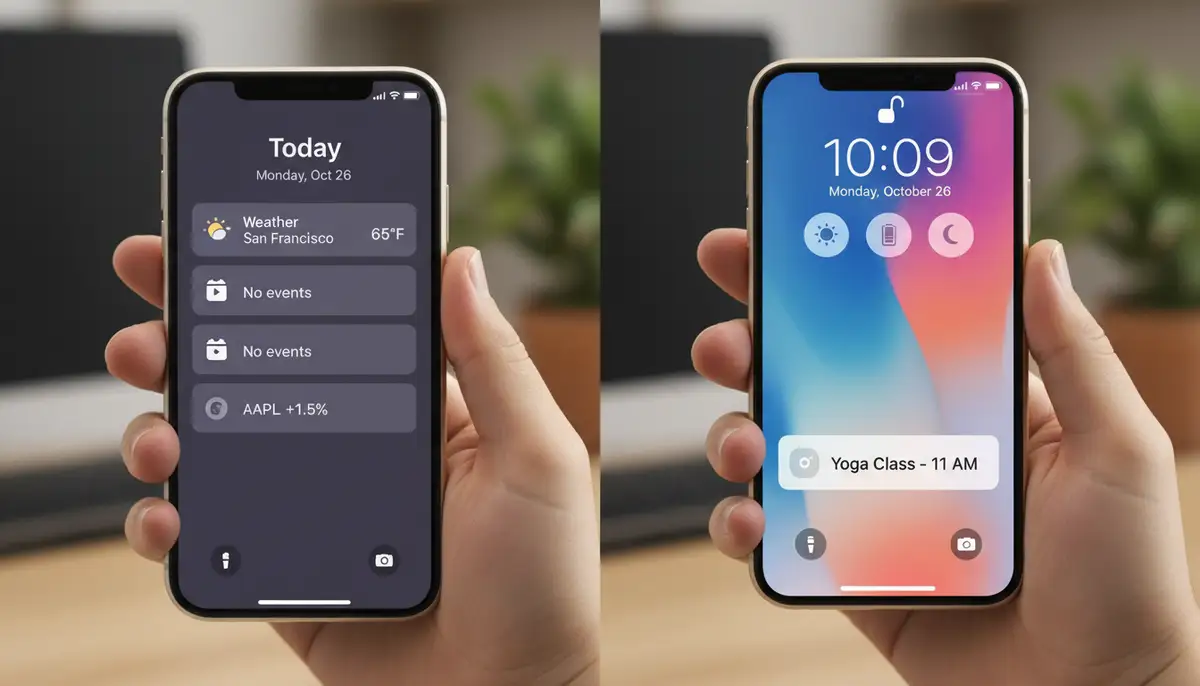
On your iPhone 8, the 'Lock Screen widgets' are primarily found in the Today View. This is accessible by swiping right from your Lock Screen or the first Home Screen page. Here, you can add widgets that provide quick glances at information. While not as integrated as the newer Lock Screen features, the Today View still offers valuable at-a-glance information. You can customize this view with various widgets, much like your Home Screen. For a general understanding of adding widgets to your Lock Screen on newer devices, you can consult this Google Guidebooks article, but remember the full functionality is for later iPhone models. For more on lock screen widgets, check out our dedicated content.
The embedded video,
, showcases the latest iOS features. While your iPhone 8 cannot run iOS 18, the fundamental steps for adding Home Screen widgets remain largely consistent across iOS versions. Watch the video to see the general process in action, keeping in mind that the Lock Screen customization shown will differ on your iPhone 8. This video helps visualize the overall widget management process, even if some specific features are not available on your device.Troubleshooting Common Widget Issues on iPhone 8
Even after you know how to add widgets on iPhone 8, you might encounter minor issues. Don't worry, most problems are easy to fix. Here are some common troubleshooting tips to keep your widgets running smoothly.
Widget Not Updating
If a widget isn't showing current information, try these steps. First, ensure the app itself is up to date and has background app refresh enabled. Go to Settings > General > Background App Refresh. Make sure the app in question is toggled on. Next, try removing the widget and adding it back. Sometimes, a simple refresh can resolve the issue. Finally, restarting your iPhone 8 can often clear up minor glitches that prevent widgets from updating correctly.
Widget Disappearing
Occasionally, a widget might disappear from your Home Screen. This can happen if the associated app was deleted or offloaded. Check if the app is still installed on your device. If it's offloaded, tap the app icon to redownload it. If the app is missing entirely, reinstall it from the App Store. Then, follow the steps for how to add widgets on iPhone 8 again. Also, ensure you have sufficient storage, as very low storage can sometimes cause apps and widgets to behave unexpectedly.
Performance Slowdown
While widgets are generally efficient, having too many active widgets, especially those that frequently update, can sometimes impact performance on an older device like the iPhone 8. If you notice your phone becoming sluggish, try reducing the number of widgets. Prioritize essential ones and remove those you rarely use. Consider using Smart Stacks to consolidate multiple widgets into one space. This helps manage resources more effectively.
Maximizing Your iPhone 8 Experience with Widgets
Now that you know how to add widgets on iPhone 8, it's time to truly make it your own. Think about your daily routine. What information do you check most often? What apps do you use frequently? Design your Home Screen and Today View around these elements. Place your most important widgets on your primary Home Screen page for instant access. Use Smart Stacks for related information you want to keep organized.
Balancing utility and aesthetics is key. You can create a beautiful Home Screen that is also highly functional. Experiment with different widget colors and styles, especially if you are using third-party apps like Widgetopia. These tools allow for deep visual customization. Don't be afraid to try new layouts and combinations. Your iPhone 8 can still offer a rich and personalized user experience in 2025.
Regularly review your widget setup. As your needs change, so too should your Home Screen. Remove widgets you no longer find useful. Add new ones that align with your current priorities. This ongoing optimization ensures your iPhone 8 remains a powerful and personalized tool. Knowing how to add widgets on iPhone 8 is a skill that keeps giving back.
Widgets are a simple yet powerful way to enhance your iPhone 8. They bring information to your fingertips and streamline your daily interactions. By following this guide, you now possess the knowledge of how to add widgets on iPhone 8, customize them, and troubleshoot common issues. Embrace the power of personalization and make your iPhone 8 truly work for you. Enjoy a more efficient and visually appealing device!