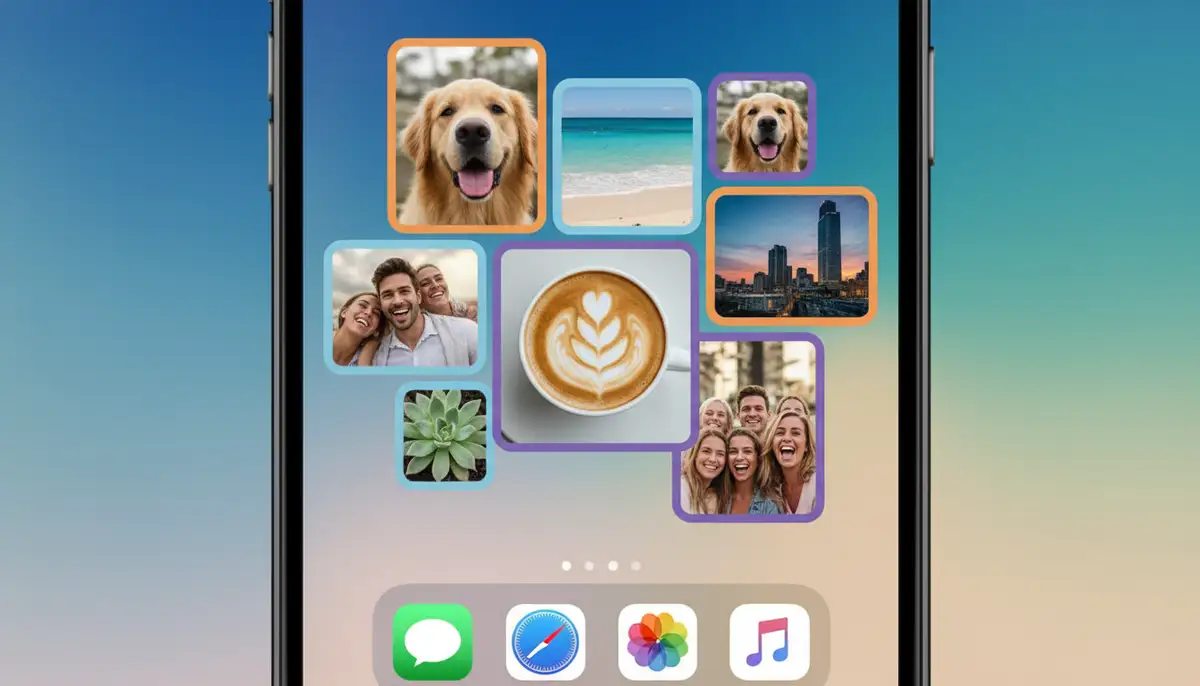


Master Your iPhone: A Comprehensive Guide on How to Add Photo Widget to Home Screen iPhone
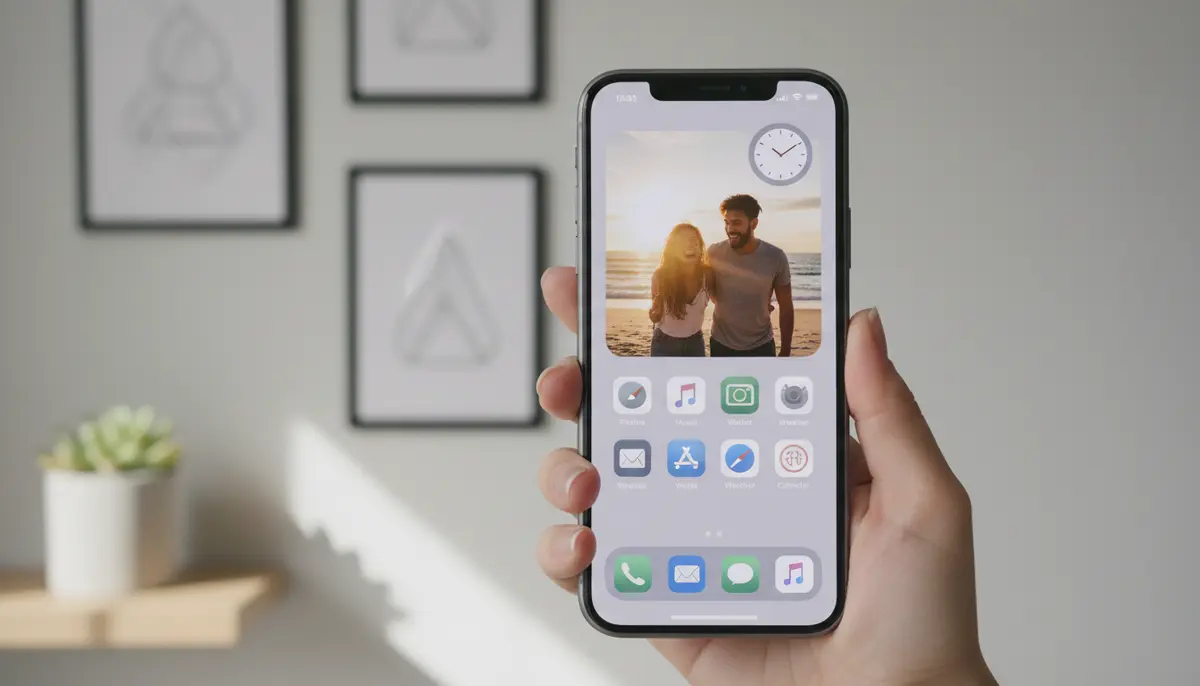
Your iPhone home screen is more than just a grid of apps. It's a canvas for your digital life. Imagine seeing your favorite memories, family photos, or inspiring landscapes every time you unlock your device. This is exactly what photo widgets allow you to do. If you've been wondering how to add photo widget to home screen iPhone, you're in the right place. This guide will walk you through everything you need to know, from Apple's built-in features to powerful third-party solutions, ensuring you can personalize your iPhone with ease.
Adding photo widgets transforms your iPhone experience. It makes your device feel more personal and engaging. You can showcase what matters most to you, right on your home screen. Let's dive into the simple steps and advanced tricks to master this customization.
Why Personalize Your iPhone Home Screen with Photo Widgets?
Personalizing your iPhone isn't just about aesthetics. It's about creating a more enjoyable and efficient user experience. Photo widgets offer a unique blend of visual appeal and emotional connection. They can brighten your day or remind you of important moments.
- Instant Mood Boost: See happy memories throughout your day.
- Quick Access to Visuals: Keep important photos visible without opening an app.
- Express Your Style: Reflect your personality and interests.
- Functional Decor: Combine beauty with utility, especially with third-party options.
- Stay Connected: Display photos of loved ones, even when they're far away.
Beyond photos, a well-organized home screen can also boost your productivity. Widgets provide glanceable information. They save you time by presenting data without needing to open full applications. Understanding how to add photo widget to home screen iPhone unlocks a new level of device interaction.
Understanding Photo Widgets on iPhone
Before we delve into the 'how-to,' let's clarify what photo widgets are. Widgets are small, dynamic app extensions. They display real-time information or specific content directly on your home screen or Today View. Photo widgets specifically pull images from your Photos app or a selected album. They then display them in a rotating or static format. Apple introduced widgets to the home screen with iOS 14. This feature has evolved with subsequent updates, including iOS 18.
Types of Photo Widgets Available
You generally have two main avenues for photo widgets on your iPhone:
- Apple's Built-in Photos Widget: This is the native option. It draws from your 'For You' section in the Photos app or a specific album you choose. It's simple, reliable, and integrates seamlessly with your iPhone's ecosystem.
- Third-Party Photo Widget Apps: These apps offer more advanced customization. They often include features like collages, custom frames, text overlays, and greater control over image rotation. Many users prefer these for a truly unique look. Companies like photowidget.net, Aesthetic Widgets, and colorwidgets.app offer robust solutions.
Both options provide excellent ways to display your cherished photos. The choice depends on your desired level of customization. We will explore how to add photo widget to home screen iPhone using both methods.
Preparing Your iPhone for Photo Widgets
Before you start adding widgets, ensure your iPhone is ready. A few quick checks will make the process smoother. This preparation ensures you have the best experience when you learn how to add photo widget to home screen iPhone.
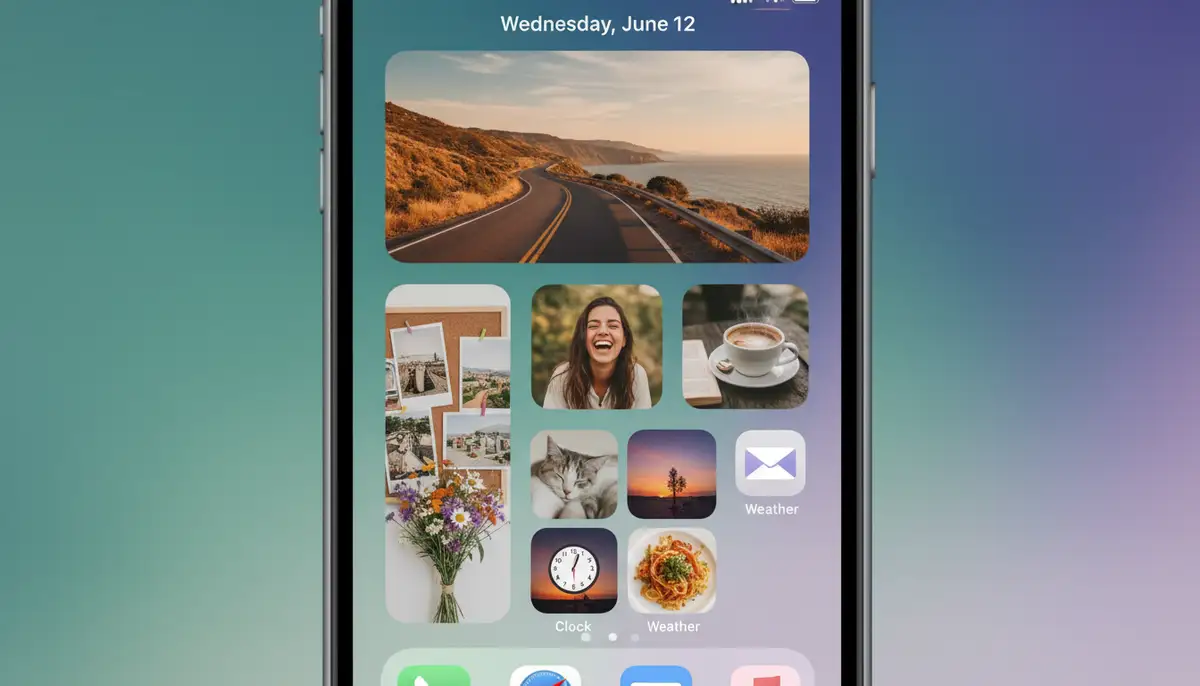
Update Your iOS Version
Widgets on the home screen became available with iOS 14. For the best features and stability, make sure your iPhone is running the latest iOS version, such as iOS 18. Go to Settings > General > Software Update. Download and install any available updates. This ensures you have access to all the latest widget functionalities and improvements.
Organize Your Photos
Photo widgets display images from your Photos app. To have control over what appears, it's a good idea to organize your photos into specific albums. Create albums for 'Family,' 'Travel,' 'Friends,' or any theme you prefer. This step is crucial, especially when you want to choose specific images for your widget. It makes the process of how to add photo widget to home screen iPhone much more effective.
How to Add Photo Widget to Home Screen iPhone Using Apple's Photos App
This is the most straightforward method. Apple's built-in Photos widget is simple and effective. Here’s a step-by-step guide on how to add photo widget to home screen iPhone using the native Photos app:
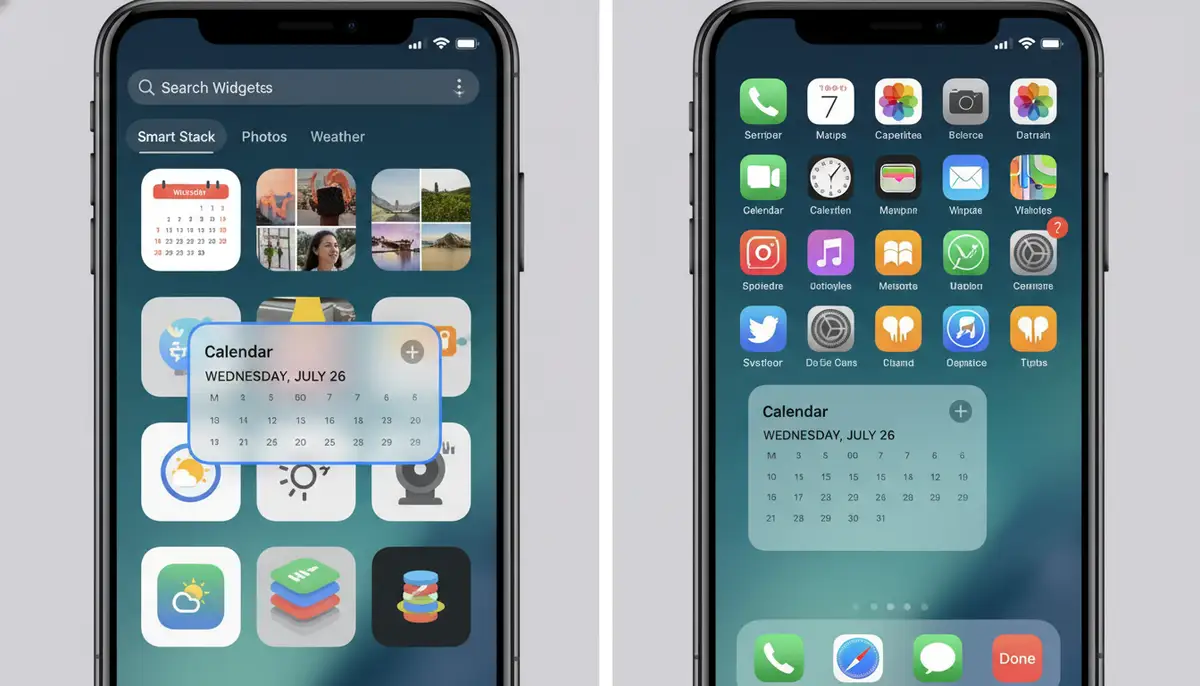
- Step 1: Enter Jiggle Mode. Touch and hold any empty area on your iPhone home screen until the apps begin to jiggle. You'll see a '+' icon appear in the top-left corner of the screen. This is also known as 'edit home screen' mode. For more details on managing widgets, check Apple's official guide on Add, edit, and remove widgets on iPhone.
- Step 2: Tap the '+' Icon. This opens the Widget Gallery. Here, you'll find a list of all available widgets from Apple and third-party apps.
- Step 3: Search for 'Photos'. Scroll down or use the search bar at the top of the Widget Gallery to find 'Photos.' Tap on it.
- Step 4: Choose Widget Size. You'll see different sizes for the Photos widget: Small (2x2), Medium (4x2), and Large (4x4). Swipe left or right to preview them. Select the size that best fits your home screen layout.
- Step 5: Add Widget. Tap 'Add Widget' at the bottom of the screen. The Photos widget will appear on your home screen. You can then drag it to your desired location. You can also drag the widget to the right-hand edge of the screen until it appears on the Home Screen as explained on How to add widgets to my iPhone home screen.
- Step 6: Exit Jiggle Mode. Tap 'Done' in the top-right corner or press the Side button (or Home button on older models) to save your changes.
Customizing Your Photos Widget
Once you've added the Photos widget, it will initially display images from your 'For You' section. This section often includes 'Featured Photos' or 'Memories.' However, you can choose a specific album. Here's how to customize it:
- Step 1: Enter Jiggle Mode. Touch and hold the Photos widget you just added until it begins to jiggle.
- Step 2: Tap 'Edit Widget'. A small menu will pop up. Select 'Edit Widget'.
- Step 3: Choose an Album. Tap on 'Featured Photos' (or whatever album is currently selected). A list of your albums will appear. Select the album you want the widget to display. If you don't select an album, it will continue to show curated photos from your 'For You' section.
- Step 4: Exit Jiggle Mode. Tap outside the widget or press the Side button to confirm your changes.
Now your Photos widget will cycle through images from your chosen album. This gives you more control over the content. This is a fundamental part of understanding how to add photo widget to home screen iPhone effectively.
Advanced Customization: How to Add Photo Widget to Home Screen iPhone with Third-Party Apps
While Apple's Photos widget is great, third-party apps offer unparalleled customization. They provide more design options, collage layouts, and control over which photos appear and when. If you want to elevate your home screen aesthetics, these apps are essential. Many users find these apps crucial when learning how to add photo widget to home screen iPhone with a unique flair.
Why Use Third-Party Photo Widget Apps?
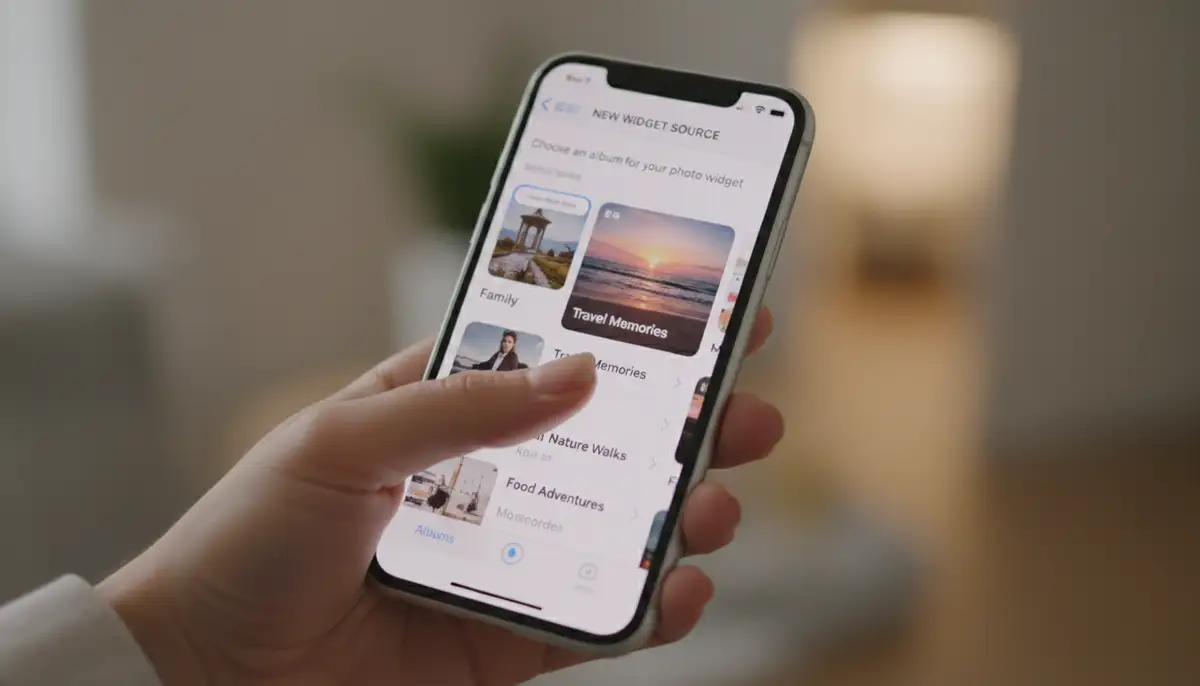
- More Design Options: Create collages, add borders, apply filters, and include text.
- Greater Control: Pin specific photos, set custom refresh intervals, or display multiple albums in one widget.
- Themed Widgets: Match your widget to your overall iPhone theme or aesthetic.
- Diverse Layouts: Beyond simple squares and rectangles, these apps offer creative arrangements.
There are many excellent third-party photo widget apps available on the App Store. Some popular ones include Photo Widget : Simple, Widgetsmith, and Color Widgets. Our own platform, Widgetopia, offers an extensive collection of home screen widgets, including highly customizable photo options. We are proud to offer the largest widget collection in the world, with 100,000 free homescreen widgets for iPhone, iPad, and Android users. You can even remix or design your own widgets. For a simple and effective option, you might consider Photo Widget : Simple - App Store - Apple.
Step-by-Step Guide: How to Add Photo Widget to Home Screen iPhone Using a Third-Party App (e.g., Widgetopia)
The exact steps might vary slightly between apps, but the general process is similar. Here’s a general guide, using Widgetopia as an example, on how to add photo widget to home screen iPhone with a third-party application:
- Step 1: Download a Photo Widget App. Go to the App Store and search for 'photo widget' or a specific app like 'Widgetopia'. Download and install your chosen app.
- Step 2: Open the App and Create Your Widget. Launch the app. Most apps will guide you through creating a new widget. This usually involves choosing a size, selecting photos from your library, and customizing its appearance (frames, text, etc.). For Widgetopia, you can browse thousands of pre-made designs or start from scratch.
- Step 3: Save Your Widget. Once you're happy with your design, save it within the app. It will then be available in your iPhone's Widget Gallery.
- Step 4: Add the Widget to Your Home Screen. Just like with Apple's Photos widget, enter Jiggle Mode by long-pressing an empty area on your home screen. Tap the '+' icon in the top-left corner.
- Step 5: Find the Third-Party App's Widget. Scroll down or search for the name of the app you downloaded (e.g., 'Widgetopia'). Tap on it.
- Step 6: Select Your Custom Widget. You'll often see different widget sizes or slots. Choose the size that matches the widget you created in the app. If you made multiple, you might need to select which specific custom widget to display.
- Step 7: Add to Home Screen and Arrange. Tap 'Add Widget' and then drag it to your desired position. Tap 'Done' to exit Jiggle Mode.
This method gives you much more creative freedom. It truly allows you to express yourself through your iPhone's interface. Knowing how to add photo widget to home screen iPhone using these tools opens up a world of possibilities.
Tips and Tricks for Your Photo Widgets
Now that you know how to add photo widget to home screen iPhone, here are some tips to make the most of them. These suggestions will help you create a beautiful and functional setup.
Curate Your Albums Carefully
The quality of your widget depends on the photos you feed it. Create dedicated albums with high-resolution, visually appealing images. Avoid blurry or low-quality pictures. Think about the aspect ratio of the widget and how your photos will crop.
Experiment with Widget Sizes and Layouts
Don't stick to just one size. Mix and match small, medium, and large widgets. A small widget might be perfect for a single, impactful photo. A large one could showcase a rotating gallery. Consider how different sizes complement your app icons and other widgets.
Arrange for Aesthetic and Functionality
Place your photo widgets strategically. Maybe a large family photo widget belongs at the top. Perhaps a small, inspiring quote widget sits near your productivity apps. Think about how your eyes scan the screen. This thoughtful arrangement enhances the experience of how to add photo widget to home screen iPhone.
Refresh and Update Your Content
Keep your photo widgets fresh. Regularly update the albums they draw from, or create new widgets with different themes. This prevents your home screen from looking stale. Many third-party apps allow you to set refresh intervals. This is a key aspect of maintaining dynamic home screen widgets.
For a visual guide on this process, you can watch this helpful tutorial:
.Troubleshooting Common Photo Widget Issues
Even with a clear understanding of how to add photo widget to home screen iPhone, you might encounter minor hiccups. Here are some common issues and their solutions:
| Issue | Possible Cause | Solution |
|---|---|---|
| Widget Not Appearing in Gallery | App not installed or updated, iOS outdated. | Ensure the app is installed and updated. Update your iPhone to the latest iOS version. |
| Photos Not Updating/Changing | Incorrect album selected, app permissions, low power mode. | Edit the widget to ensure the correct album is selected. Check Photos app permissions in Settings > Privacy & Security > Photos. Disable Low Power Mode. |
| Widget is Blank or Black | Corrupt app data, temporary glitch. | Remove the widget and re-add it. Restart your iPhone. Reinstall the third-party widget app. |
| Performance Issues (Lagging) | Too many widgets, app conflicts. | Reduce the number of active widgets. Check for updates to the widget app. Restart your device. |
| Third-Party Widget Not Showing Customizations | Widget not configured correctly within the app. | Open the third-party app, ensure your custom widget is saved and selected as the active widget for the chosen slot. |
Most widget issues are minor and can be resolved with these simple steps. Don't be afraid to experiment and troubleshoot. Understanding how to add photo widget to home screen iPhone also includes knowing how to fix them.
Beyond Photos: Exploring Other iPhone Widgets
While photo widgets are fantastic for personalization, the world of iPhone widgets is vast. Once you master how to add photo widget to home screen iPhone, you might want to explore other types. You can add widgets for weather, calendar, reminders, battery life, and much more. These home screen widgets provide quick access to information and functionalities.
Additionally, iOS 16 and later introduced lock screen widgets, allowing you to customize your lock screen with glanceable information. This further extends your personalization options beyond the home screen. Many third-party apps, including Widgetopia, offer extensive collections for both home and lock screens. Our platform boasts the largest widget collection in the world, providing 100,000 free homescreen widgets for iPhone, iPad, and Android, giving you endless possibilities to design your perfect device interface.
By combining photo widgets with other utility widgets, you can create a truly unique and efficient iPhone experience. Think about what information you access most frequently. Then, find widgets that streamline those interactions. This holistic approach to customization can significantly enhance your daily digital life.
Conclusion: Transform Your iPhone with Photo Widgets
You now have all the knowledge to transform your iPhone home screen. Learning how to add photo widget to home screen iPhone is a simple yet powerful way to personalize your device. Whether you opt for Apple's native Photos widget or dive into the rich features of third-party apps like Widgetopia, the ability to display your cherished memories and inspiring images is at your fingertips.
Don't settle for a generic home screen. Take control and make your iPhone truly yours. Experiment with different photos, sizes, and arrangements. Explore the vast world of widgets available. Start today and enjoy a more personalized, engaging, and visually appealing iPhone experience. The power of customization, starting with how to add photo widget to home screen iPhone, is now yours to command.