

Mastering the Android Slider Widget: Your Ultimate Guide to Interactive UI in 2025

In the fast-evolving world of Android app development, user experience remains king. One small but mighty component that significantly enhances interactivity and usability is the android slider widget. These intuitive elements allow users to effortlessly select a value from a predefined range, making tasks like adjusting volume, brightness, or progress incredibly smooth. By 2025, a well-implemented android slider widget is not just a nice-to-have; it's a fundamental part of a polished and engaging mobile application. This guide will walk you through everything you need to know about mastering the android slider widget, from basic implementation to advanced customization and best practices.
What Exactly is an Android Slider Widget?
At its core, an android slider widget is a graphical control element that lets users pick a value by moving a 'thumb' along a 'track.' Think of the volume control on your phone or the brightness adjustment in your settings menu. These are classic examples of the android slider widget in action. They provide immediate visual feedback, showing the selected value as the user interacts with it. This direct manipulation makes them incredibly user-friendly, reducing the need for text input or multiple taps.
Sliders are designed for efficiency. Instead of typing a number or repeatedly tapping plus/minus buttons, you simply drag. This makes them ideal for settings, filters, and any scenario where a continuous or discrete range of values needs to be selected quickly. If you're curious about the broader concept of these interactive elements on your device, you can explore more about what is widget on android to understand their role in modern mobile interfaces.
Why Your App Needs an Android Slider Widget
Integrating an android slider widget into your application brings a host of benefits that directly impact user satisfaction and overall app quality. Let's look at why they are so crucial:
- Enhanced User Experience: Sliders offer a natural, tactile way to interact with your app. Users appreciate the direct control and visual feedback.
- Improved Accessibility: For many users, especially those with motor impairments, dragging a slider can be easier than precise tapping or typing.
- Space Efficiency: A single android slider widget can represent a wide range of values in a compact space, saving valuable screen real estate.
- Intuitive Control: Sliders are universally understood. Users instinctively know how to operate them, reducing the learning curve for your app.
- Modern Aesthetic: Material Design sliders, in particular, contribute to a clean, modern, and professional look for your application.
In an increasingly competitive app market, every detail counts. A well-designed android slider widget can be a subtle yet powerful differentiator for your application, making it feel more polished and enjoyable to use.
Exploring Different Types of Android Slider Widgets
The Android framework, especially with Material Design, offers various types of sliders to suit different interaction needs. Understanding these types will help you choose the right android slider widget for your specific use case. For a deeper dive into these components, you might find this resource on Material Design Components Sliders in Android very helpful.
Continuous Sliders
Continuous sliders allow users to select any value within a given range. There are no predefined steps or notches. They are perfect for adjustments that require fine-grained control, such as volume, brightness, or color saturation. The track usually fills with a color to the left of the thumb, visually indicating the current value.
Discrete Sliders
Discrete sliders, on the other hand, allow users to select only specific, predefined values. These values are often indicated by tick marks or labels along the track. When the user moves the thumb, it snaps to the nearest valid value. These are ideal for settings like font size (small, medium, large) or quality settings (low, medium, high). The visual snapping helps users understand the distinct options available.
Range Sliders
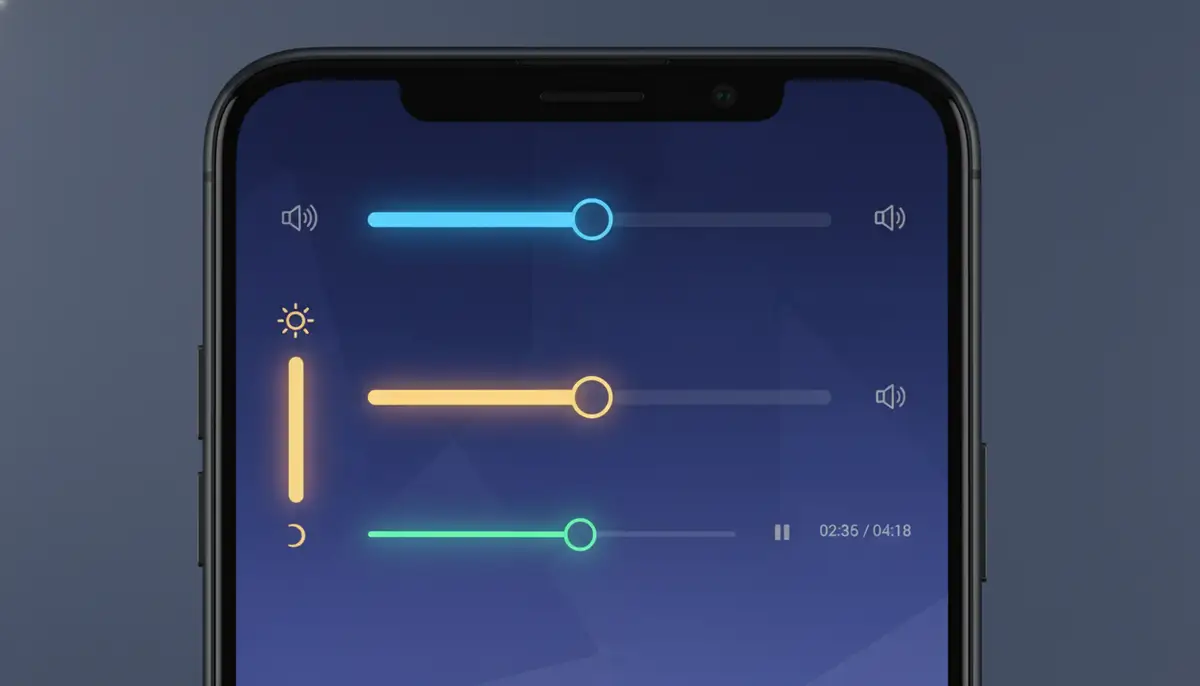
Range sliders are a more advanced form of the android slider widget. They feature two thumbs, allowing users to select a range of values rather than a single point. This is incredibly useful for filtering data, such as selecting a price range in an e-commerce app or a time duration in a calendar application. The area between the two thumbs typically highlights to show the selected range.
To see more examples and understand the nuances of these components, consider watching this detailed explanation:
. This video provides excellent visual context for implementing various slider types effectively. You can also gain further insights into how these interactive elements function by reading about sliders as Material Components for Android.Implementing an Android Slider Widget in Your App
For developers, integrating an android slider widget is straightforward, especially with the help of Material Components for Android. We'll outline the basic steps using Kotlin and XML, assuming you're working with Material 3, which is the standard in 2025.
Step 1: Add Material Components Dependency
Ensure your `build.gradle (Module: app)` file includes the Material Components library:
```gradle implementation 'com.google.android.material:material:1.x.x' // Use the latest version ```
Step 2: Define the Slider in XML Layout
In your `activity_main.xml` or any other layout file, add a `Slider` component. Here's an example of a basic continuous android slider widget:
```xml
For a discrete slider, you'd use `android:stepSize` to define the intervals, and for a range slider, you'd use `RangeSlider` instead of `Slider` and provide `values` in your Kotlin/Java code.
Step 3: Handle Slider Events in Kotlin/Java
In your `MainActivity.kt` (or equivalent), you'll find the slider and set up a listener to react to value changes:
```kotlin
import com.google.android.material.slider.Slider
class MainActivity : AppCompatActivity() {
override fun onCreate(savedInstanceState: Bundle?) {
super.onCreate(savedInstanceState)
setContentView(R.layout.activity_main)
val volumeSlider = findViewById
This basic setup gives you a functional android slider widget. From here, you can add more logic and UI updates as needed for your application. Remember to test your slider on various device sizes and orientations to ensure it behaves as expected.

Customizing Your Android Slider Widget for Brand Identity
While the default Material Design android slider widget looks good, you'll often want to customize it to match your app's unique brand identity. Material Components offer extensive customization options through XML attributes and themes.
Key Customization Attributes:
- app:trackColorInactive / app:trackColorActive: Changes the color of the track before and after the thumb.
- app:thumbColor: Sets the color of the slider's thumb.
- app:haloColor: Adjusts the color of the halo effect that appears around the thumb when pressed.
- app:labelStyle: Customizes the style of the pop-up label that shows the current value (for discrete sliders).
You can define these colors and styles in your app's `themes.xml` or directly in the layout XML. For example, to change the active track color and thumb color:
```xml
Remember to define `@color/my_primary_color` and other custom colors in your `colors.xml` file. Thoughtful customization of your android slider widget can significantly enhance your app's visual appeal and coherence.
Best Practices for Android Slider Widget Design
Designing an effective android slider widget goes beyond just implementing it. It's about making it intuitive, accessible, and enjoyable to use. Here are some best practices:
| Do | Don't |
|---|---|
| Provide clear labels for the minimum and maximum values. | Use sliders for precise numerical input (e.g., entering a phone number). |
| Ensure the thumb is large enough to be easily tappable. | Make the track too thin or difficult to see. |
| Give immediate visual feedback when the value changes. | Use too many sliders on a single screen, causing clutter. |
| Use discrete sliders when specific steps are required. | Hide the current value, especially for discrete sliders. |
| Consider haptic feedback for a more tactile experience. | Force users to guess the value without a label or visual cue. |
Always test your android slider widget with real users. Observe how they interact with it. Gather feedback to refine its design and ensure it meets their needs. User testing is invaluable for identifying usability issues you might have overlooked.
Popular Android Slider Widget Implementations You See Every Day
The android slider widget is ubiquitous in modern Android devices and applications. You probably interact with several every day without even realizing it. Understanding these common uses can inspire your own app's design.
- Volume Control: The most common use case. Adjusting media, alarm, or ringtone volume.
- Screen Brightness: Found in quick settings and display settings, allowing users to control screen luminosity.
- Media Playback Seek Bars: In video and music players, these let you scrub through content to a specific timestamp.
- Image Editing Filters: Many photo editing apps use sliders for adjusting parameters like contrast, saturation, and exposure.
- Game Settings: Adjusting sensitivity, graphics quality, or sound levels in mobile games often uses a slider.
Beyond system-level controls, many third-party apps leverage the android slider widget for various functions. For instance, apps like Slider Widget offer quick access to brightness and volume controls directly from your home screen, demonstrating the utility of a dedicated android slider widget for common tasks.

Integrating Android Slider Widgets with Other Home Screen Elements
The power of an android slider widget isn't just in its individual functionality; it's also in how well it integrates with other elements of your app and the user's home screen. Imagine a home screen widget that not only shows you the time but also lets you adjust a smart home device's temperature with a simple slider. This kind of synergy creates a truly powerful user experience.
For example, you could combine a slider for music volume with a custom media player widget. Or, imagine a productivity app where a slider helps you quickly adjust the priority of tasks shown in a list. This seamless integration makes your app feel more cohesive and responsive. If you're looking to create dynamic and interactive home screens, understanding how to combine different elements, like an android clock widget with a custom slider, is key.
Widgetopia, a leading platform for home screen and lock screen widgets for iOS and Android, empowers users to create and customize their widgets. With a vast collection of 100,000 free homescreen widgets, you can remix existing designs or create your own, easily incorporating interactive elements like a custom android slider widget into your personalized layouts.
Troubleshooting Common Android Slider Widget Issues
Even with careful implementation, you might encounter some common issues when working with the android slider widget. Knowing how to troubleshoot these can save you a lot of time.
- Slider Not Responding: Check if the `addOnChangeListener` is correctly implemented and if the slider is enabled. Ensure `android:clickable` is not set to `false` if you've customized it.
- Value Not Updating: Verify that your listener is correctly retrieving the `value` and that any UI updates or logic dependent on this value are being executed.
- UI Glitches/Misalignment: This often happens with custom styling. Double-check your `layout_width`, `layout_height`, and any padding/margin attributes. Test on different screen densities.
- RangeSlider Issues: For `RangeSlider`, ensure you're setting `values` (a `List
`) correctly in your code, not just `valueFrom` and `valueTo`. - Accessibility Concerns: If talkback users struggle, ensure you've provided `android:contentDescription` for clarity, especially for custom slider types.
Always use the Android Studio debugger to step through your code and inspect variable values. This is the most effective way to pinpoint the root cause of unexpected behavior in your android slider widget or any other UI component.
The Future of the Android Slider Widget
As technology advances, so too will the capabilities of the android slider widget. We can expect to see even more sophisticated implementations in the coming years. Imagine sliders that adapt their range based on contextual data, or those that integrate seamlessly with voice commands and AI assistants. Haptic feedback will become more nuanced, providing richer tactile experiences. Cross-device consistency will also improve, ensuring that a slider feels familiar whether you're using it on your phone, tablet, or even a foldable device.
The focus will shift towards 'smart' sliders that anticipate user needs and offer more personalized interactions. Expect more expressive Material Design elements that allow for greater artistic freedom while maintaining usability. The android slider widget will likely play a role in augmented reality (AR) interfaces, allowing users to manipulate virtual objects with intuitive gestures translated through a slider-like interaction.
Enhancing Your Home Screen with Android Slider Widgets
Beyond app development, users can also leverage the power of the android slider widget to customize their home screens. Many third-party widget apps offer slider functionality, allowing you to control system settings or app-specific functions right from your home screen. This means less navigating through menus and more direct control.
When it comes to personalizing your Android home screen, solutions like photowidget.net, colorwidgets.app, and Aesthetic Widgets offer various ways to make your device truly yours. These platforms often provide a wide array of widgets, including those with slider-like interactions, to give you quick access to controls and information. However, if you're looking for unparalleled customization and a massive library, Widgetopia stands out. We offer a vast collection of 100,000 free homescreen widgets for iPhone, iPad, and Android, allowing users to remix or design their own. This extensive selection ensures you can find or create the perfect android slider widget to complement your aesthetic and functional needs, truly making your device an extension of yourself.
Consider adding a brightness slider, a volume slider, or even a custom slider that controls smart home devices, all directly on your home screen widgets for instant access. This level of control and personalization is what makes Android so powerful, and the android slider widget is a key player in this ecosystem.

Conclusion: The Enduring Power of the Android Slider Widget
The android slider widget is a testament to effective UI design. It's simple, intuitive, and incredibly versatile, making it an indispensable tool for developers and users alike. Whether you're building a new application or simply customizing your home screen, mastering the android slider widget will significantly enhance the interactive experience. By following best practices, embracing customization, and staying aware of future trends, you can ensure your sliders are not just functional, but truly delightful to use. Start integrating and customizing your android slider widget today to create more engaging and user-friendly Android experiences in 2025 and beyond.