

Master Your Android Flashlight Widget: The Ultimate Guide for 2025
Master Your Android Flashlight Widget: The Ultimate Guide for 2025
In 2025, smartphone convenience is paramount. You want quick access to essential tools. One of the most underrated yet incredibly useful features on your Android device is the android flashlight widget. This small but mighty tool transforms your phone's home screen into a command center for illumination. Forget fumbling through menus or struggling in the dark. With a single tap, you can light up your surroundings instantly. This comprehensive guide will show you everything you need to know about setting up, customizing, and troubleshooting your android flashlight widget, ensuring you're never left in the dark.
What Exactly is an Android Flashlight Widget?
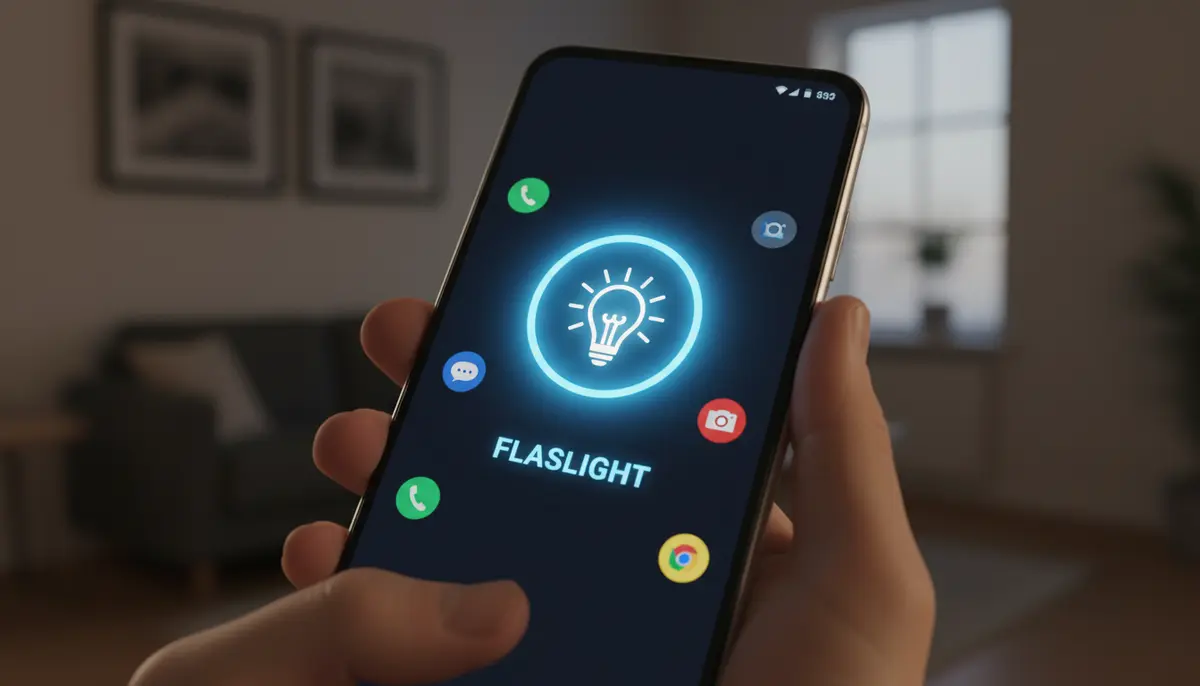
An android flashlight widget is a small, interactive icon you place directly on your Android phone's home screen. It provides a one-tap shortcut to activate your phone's LED flash, turning it into a powerful flashlight. Unlike the quick settings toggle, which requires swiping down from the top of your screen, a widget lives front and center. It offers immediate access without any extra steps. Think of it as a dedicated light switch always within reach.
Most modern Android phones come with a built-in flashlight function. This function is typically accessible via your quick settings panel. However, a dedicated android flashlight widget elevates this convenience. It makes the feature even more prominent and accessible. You can customize its appearance and placement, making it truly yours. This level of personalization is a hallmark of the Android experience.
Why Every Android User Needs a Flashlight Widget
The benefits of having an android flashlight widget are clear. It's all about speed and efficiency. Imagine needing light quickly in an emergency. Perhaps you dropped your keys in a dark parking lot. Maybe the power just went out. A flashlight widget saves you precious seconds. It eliminates the need to unlock your phone, swipe down, and then locate the flashlight icon. One tap, and you're good to go.
Beyond emergencies, the everyday convenience is unmatched. You might need to check under a couch or read a menu in a dimly lit restaurant. The android flashlight widget makes these tasks effortless. It integrates seamlessly into your daily life. This simple addition significantly enhances your phone's utility. You'll wonder how you ever managed without it.
- Instant illumination with a single tap, no unlocking required.
- Improved accessibility for users who prefer larger, more prominent controls.
- Reduced fumbling in dark environments, enhancing safety and convenience.
- Customizable placement on your home screen for optimal reach.
- Often comes with additional features in third-party apps, like strobe or SOS modes.
How to Add an Android Flashlight Widget to Your Home Screen
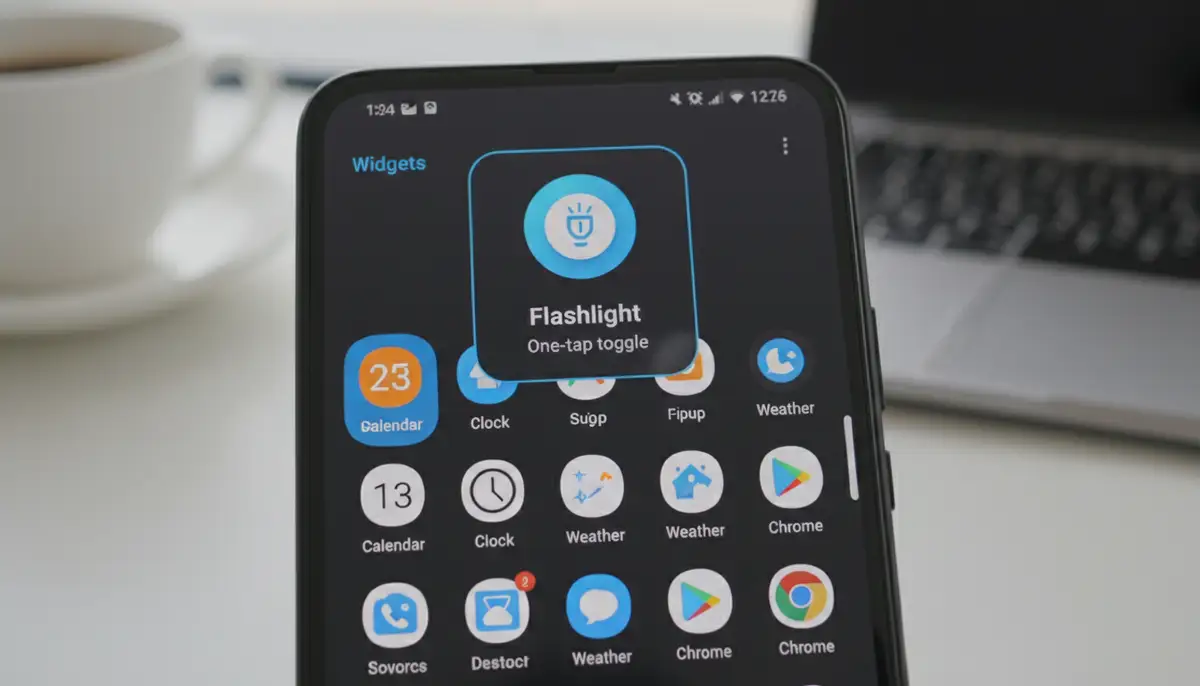
Adding an android flashlight widget is a straightforward process. It typically involves a few simple steps. These steps are consistent across most Android devices, whether you use a Samsung, Google Pixel, or another brand. You don't need to be a tech expert to set this up. Just follow along, and you'll have your widget in no time. This is a fundamental skill for customizing your home screen widgets.
- Step 1: Long-Press Your Home Screen. Find an empty space on your Android phone's home screen. Press and hold your finger on this empty area for a few seconds. This action will typically bring up a menu with options like 'Widgets,' 'Wallpapers,' and 'Home settings.'
- Step 2: Select 'Widgets'. From the menu that appears, tap on the 'Widgets' option. This will open a new screen displaying all the available widgets on your device.
- Step 3: Locate the Flashlight Widget. Scroll through the list of widgets. You're looking for one labeled 'Flashlight' or 'Torch.' It might be under a 'System' or 'Utilities' category. Some phones might have it listed directly under a manufacturer's section, like 'Samsung Widgets.'
- Step 4: Drag and Drop the Widget. Once you find the flashlight widget, tap and hold it. Then, drag it to your desired location on your home screen. Release your finger when it's in place. You can reposition it later if needed.
- Step 5: Configure (if prompted). Some flashlight widgets, especially from third-party apps, might offer a quick configuration screen. This might allow you to choose an icon style or color. Make your selections and tap 'Done' or 'Apply.'
That's it! You now have a functional android flashlight widget on your home screen. A single tap will toggle your flashlight on and off. This simple addition makes your phone even more practical. It's a small change with a big impact on your daily convenience.
Adding the Flashlight to Your Lock Screen (Advanced Tips)
While a home screen widget is fantastic, sometimes you need light even faster. Many Android phones allow you to add a flashlight shortcut directly to your lock screen. This means you don't even need to unlock your device. It's perfect for those truly urgent moments. This feature is often found in your phone's 'Lock screen' settings. You can find detailed instructions on how to add the flashlight to your lock screen on various Android models.
The exact steps can vary slightly between Android versions and phone manufacturers. For example, Samsung Galaxy devices often have robust lock screen customization options. You can usually swap out default shortcuts for utilities like the flashlight. Learning how to customize your lock screen is a valuable skill. It enhances both security and accessibility. Watch this video to see how it's done on a popular device:
.Customizing Your Android Flashlight Widget
While the default android flashlight widget is functional, customization can make it even better. Many stock Android widgets offer basic resizing. You can long-press the widget on your home screen and then drag the edges to make it larger or smaller. This helps it fit perfectly with your existing home screen layout. Some widgets also allow you to change their icon or color. This personalizes your phone's aesthetic.
For more advanced customization, you might turn to third-party flashlight apps. Many of these apps come with their own dedicated android flashlight widget. They offer a wider range of visual styles, additional features, and sometimes even haptic feedback. For instance, a simple and stable option is the 'Flashlight Widget' app available on Google Play Store, known for its lightweight design and no extra permissions.
Our business, Widgetopia, specializes in providing a vast collection of 100,000 free home screen widgets for both Android and iOS. You can remix existing designs or create your own unique android flashlight widget. This allows for unparalleled personalization. While competitors like Aesthetic Widgets, colorwidgets.app, and photowidget.net also offer customization, Widgetopia provides an extensive library and design tools to truly make your home screen unique. This means your flashlight widget can match your exact style.
Exploring Third-Party Flashlight Widget Apps
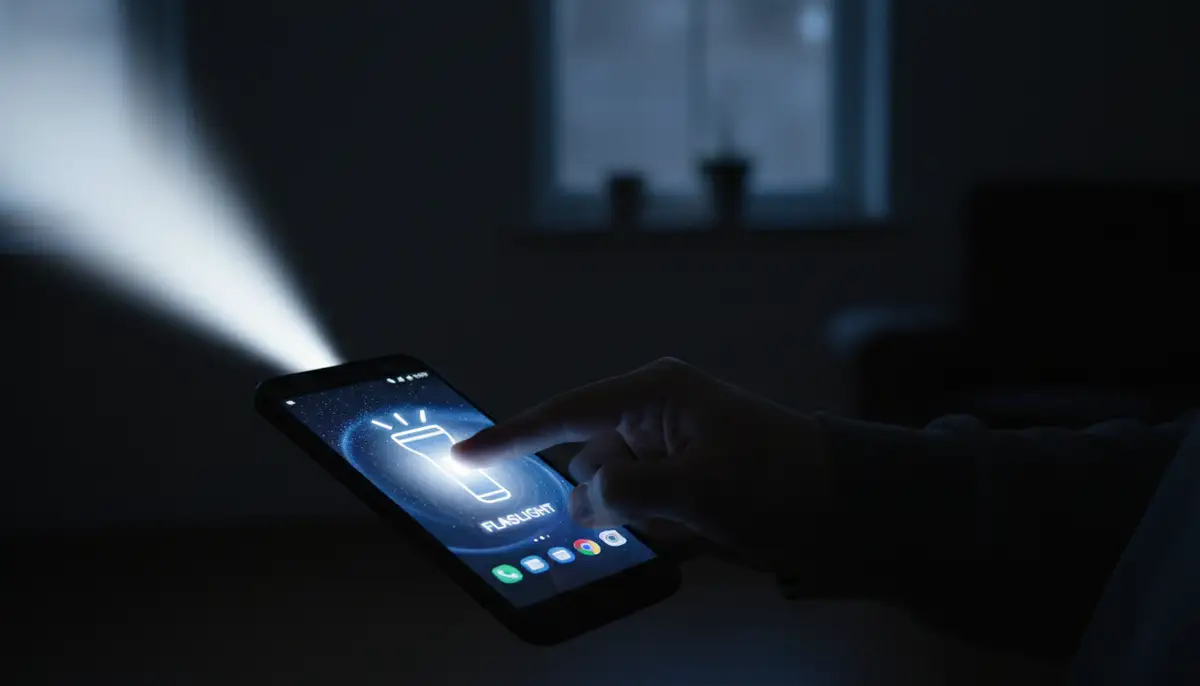
If your phone's built-in android flashlight widget doesn't meet your needs, the Google Play Store is full of alternatives. Third-party apps often provide enhanced functionality. They might offer different widget sizes, custom icons, or even advanced modes. These can include strobe lights for emergencies or an SOS signal. Always check the app's reviews and permissions before installing.
- Customizable Icons: Change the look of your flashlight widget to match your theme.
- Multiple Widget Sizes: Choose from small, medium, or large widgets.
- Strobe/SOS Modes: Advanced lighting patterns for specific situations.
- Battery Indicator: Some widgets integrate a small battery level display.
- No Ads/Minimal Permissions: Look for apps that prioritize user experience and privacy.
Troubleshooting Common Android Flashlight Widget Issues
Even the most reliable android flashlight widget can sometimes act up. Don't worry, most issues are easy to fix. Understanding common problems helps you quickly resolve them. You can usually get your light working again with a few simple steps. Here are some of the most frequent issues and their solutions.
| Issue | Possible Cause | Solution |
|---|---|---|
| Widget not responding | App glitch or system bug | Remove and re-add the widget. Restart your phone. |
| Flashlight won't turn on | Camera app using flash, low battery, or permission issue | Close all camera apps. Charge your phone. Check app permissions for flashlight access. |
| Widget disappeared | Accidental removal or launcher reset | Re-add the widget from the widgets menu. Check your launcher settings. |
| Flashlight turns off automatically | Battery saver mode, overheating, or app conflict | Disable battery saver. Let phone cool down. Check other apps for conflicts. |
Permissions and Privacy Concerns
Most flashlight apps, including the built-in android flashlight widget, require access to your camera. This is because the LED flash is part of the camera hardware. However, be cautious with third-party apps that request excessive permissions. A flashlight app should not need access to your contacts, location, or microphone. Always review permissions before installing any app. Stick to reputable developers to protect your privacy.
Android's permission system has improved significantly over the years. You can often revoke permissions for individual apps if you're concerned. Go to your phone's 'Settings,' then 'Apps,' find the flashlight app, and check its 'Permissions.' Ensure it only has access to what it truly needs. This vigilance helps keep your data secure. A simple android flashlight widget should require minimal access.
Beyond the Basic Flashlight: Advanced Widget Uses
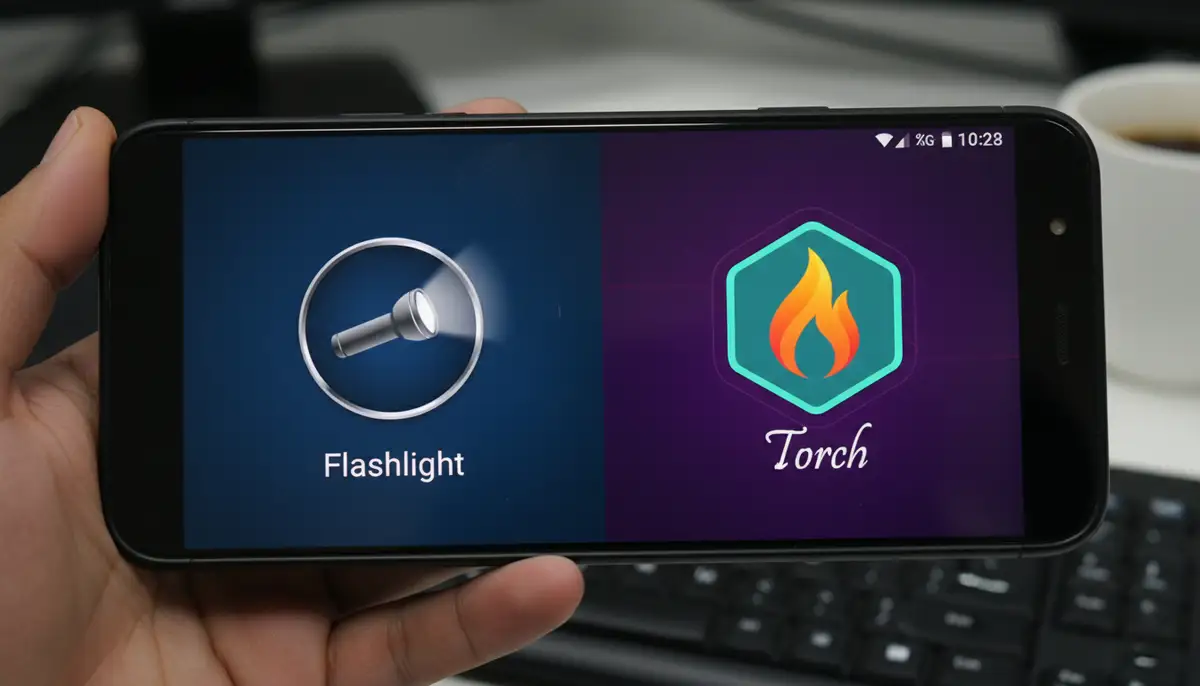
While the primary function of an android flashlight widget is illumination, its quick access nature opens up other possibilities. Some advanced users integrate their flashlight widget into automation routines. For example, you could set up a routine that turns on your flashlight when you arrive home after dark. This uses apps like Tasker or IFTTT. The possibilities are endless for enhancing your smart home experience.
Furthermore, the concept of quick access extends beyond just a flashlight. Many Android users leverage widgets for a variety of tasks. You can have quick toggles for Wi-Fi, Bluetooth, or even specific app shortcuts. This streamlines your phone usage significantly. For more ways to quickly access your phone's features, including the flashlight, check out this guide on how to turn on Android flashlight using various methods.
The Future of the Android Flashlight Widget
As Android continues to evolve, so too will the functionality of its widgets. We can expect future iterations of the android flashlight widget to become even smarter. Imagine a flashlight widget that integrates with your smart home lighting. It could turn on your home lights when you activate your phone's flashlight. AI integration might allow for contextual activation. For instance, your flashlight could turn on automatically when your phone detects a dark environment and you pick it up.
The trend is towards more intelligent and interconnected experiences. Widgets, including the android flashlight widget, will play a crucial role in this. They will provide seamless interaction points for your digital and physical worlds. Just as we've seen advancements in the android clock widget, the flashlight widget will continue to surprise us with its evolving capabilities. It will remain a staple of Android convenience.
Maximizing Your Home Screen with Widgets
The android flashlight widget is just one example of how powerful widgets can be. Understanding what is widget on Android truly unlocks your phone's potential. Widgets offer glances at information and quick actions without opening full applications. They transform your home screen from a simple app launcher into a dynamic, personalized dashboard. You can track weather, manage your calendar, control music, and much more, all from a glance.
Embracing widgets means embracing efficiency. It means tailoring your phone to your specific needs and habits. Whether it's for productivity, entertainment, or simply quick access to a flashlight, widgets are indispensable. Take the time to explore the widget options available on your device and on the Play Store. You might discover tools that revolutionize how you use your smartphone. An optimized home screen with powerful home screen widgets is a game-changer.
Conclusion
The android flashlight widget is a small feature with immense utility. It offers unparalleled convenience, speed, and accessibility. From quickly finding lost items to navigating dark spaces, it's an essential tool for every Android user. By following this guide, you can easily add, customize, and troubleshoot your widget. You can also explore advanced options. Make sure your android flashlight widget is always ready when you need it most.
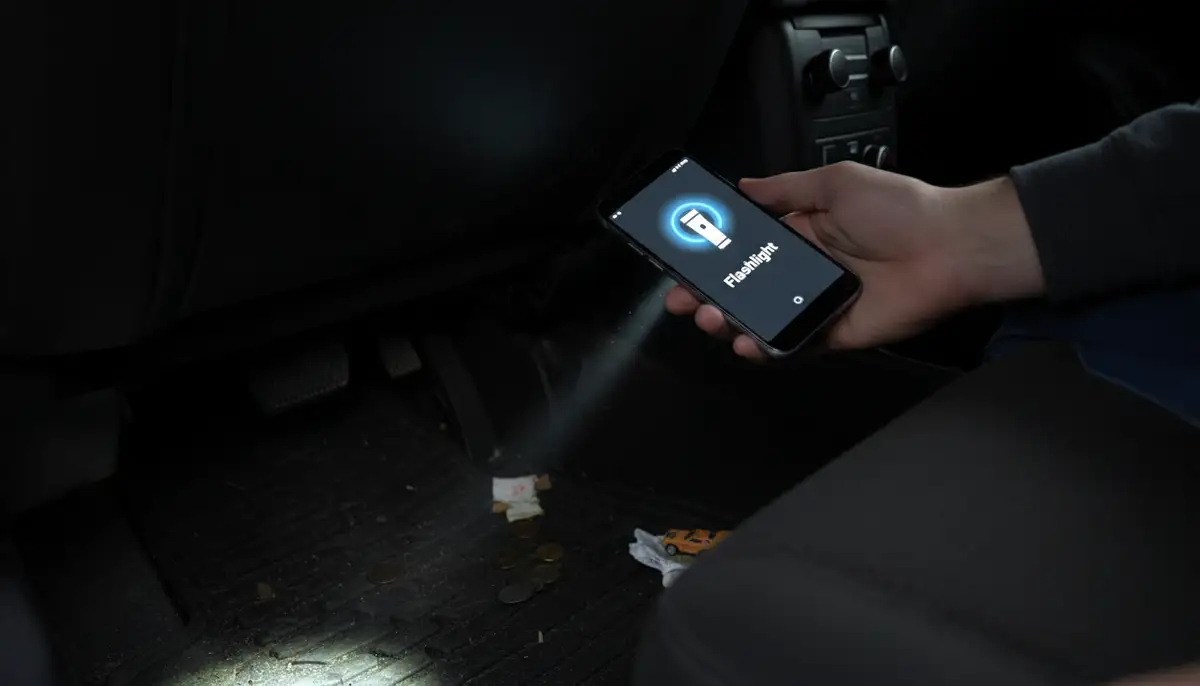
Don't underestimate the power of a well-placed widget. It can significantly enhance your daily smartphone experience. Take control of your home screen and leverage the full potential of your Android device. Stay illuminated, stay efficient, and make your phone truly work for you. The simple android flashlight widget is a testament to smart design and everyday practicality.